Weight Items
Area items include items with the following Units of Measure:
- POUND (LB)
- TON
Refer to the Measurement and Payment Guidelines topic in this manual for details on significant figures and requirements for measurement and payment.
Mobile Inspector documentation examples for a few weight items are illustrated in this topic. Some minor modifications may be required to show the unusual circumstances which may occur with different items, but the general format should be followed. If there are items which cannot be documented according to the following examples, contact the Construction Admin Services Section for assistance.
This topic includes separate sections for details on:
- Aggregate and Roadbed Modification items
- Plantmix and Recycled Surface items
- Liquid and Emulsified Asphalt items
Weight Item Notes
- Turn in paper calculation sheets to the Office Manager.
- A photo of a label on any container must be taken and emailed to the crew office to document the quantity. This photo is saved to the appropriate Contract Files\Contract\07 Estimates directory.
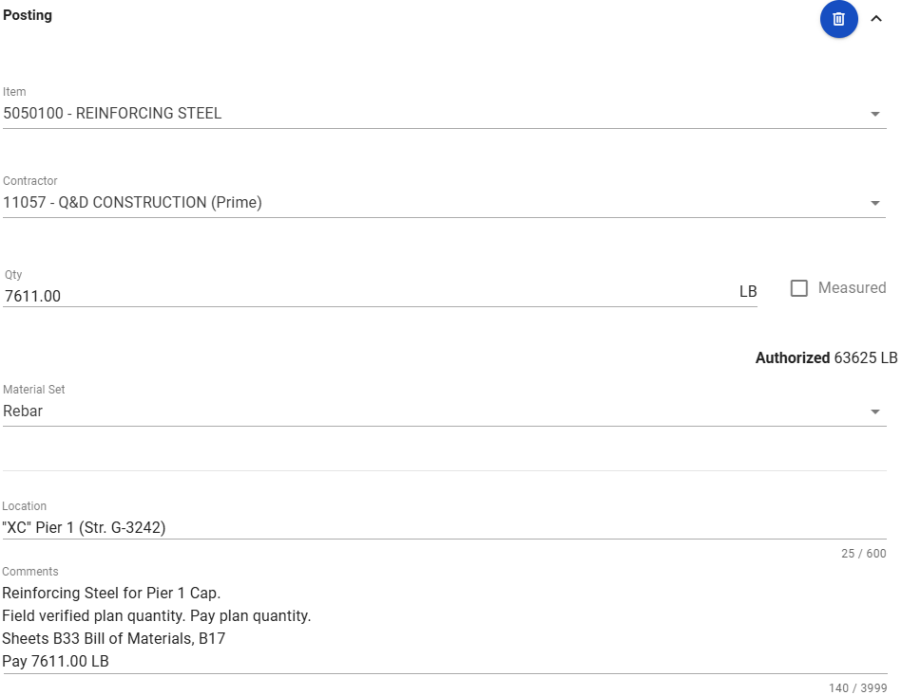
- Payment for POUND (LB) for Reinforcing Steel is based on the Contract plan's Bill of Materials. If plan quantity is different, field measurements and calculations (per Standard Specifications, Subsection 505.04.01 Measurement, are required.
- If using information from the Standard Plans, then include the table reference callout.
Weight Item Calculation Formulas
While not common, Inspectors may show the calculations for ton items when weights (computerized load tickets) cannot be obtained. The calculations are found in the Calculation Formulas topic.
Mobile Inspector Report - Weight Item Posting Examples
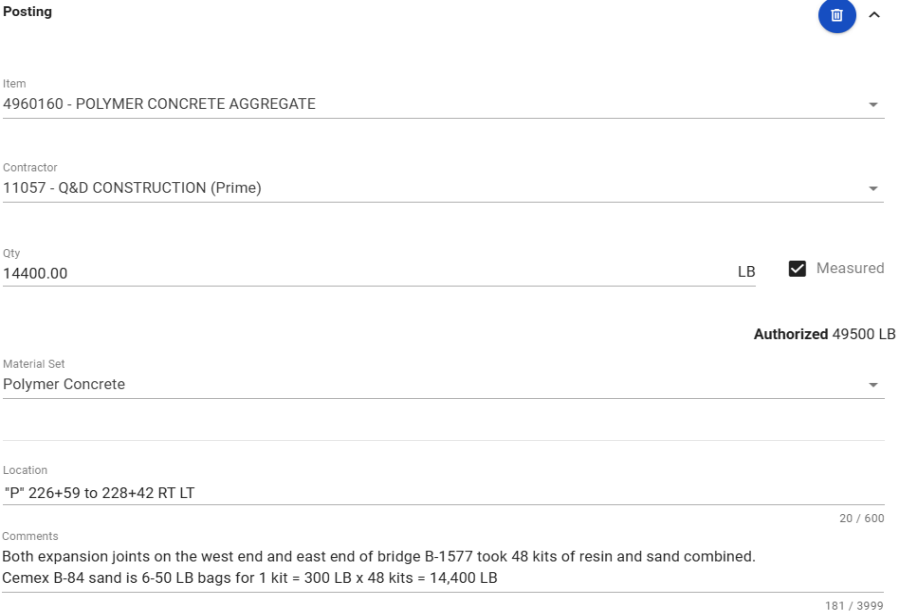
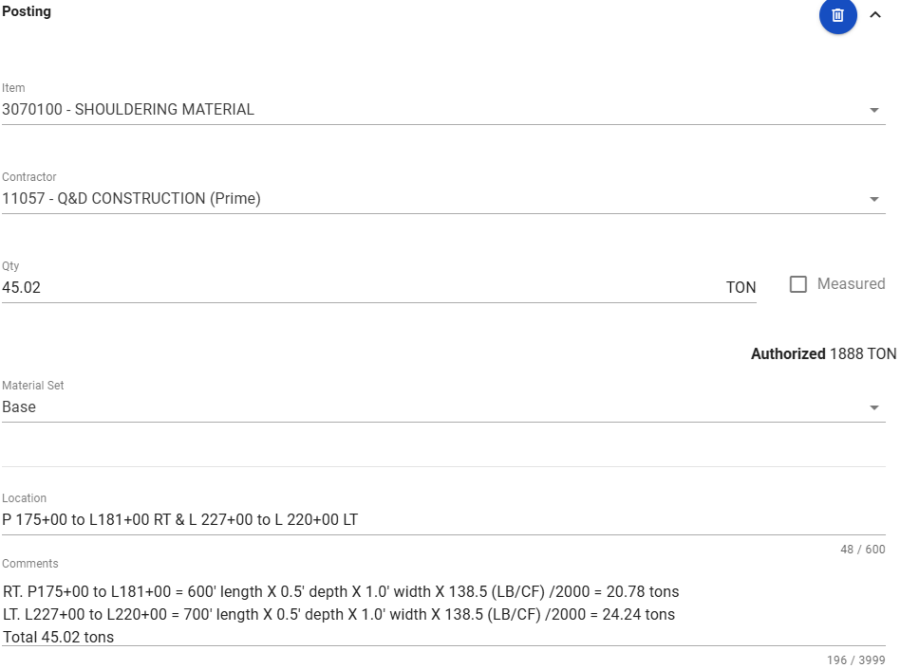
Refer to the Creating Mobile Inspector Reports - Postings topic for details on entering item postings. The examples below only show Location field entries as we do not want location data entered in the GPS Coordinates or Station and Offset fields in Mobile Inspector.
Examples of POUND (LB) Item Postings
_______________________________________________
_______________________________________________
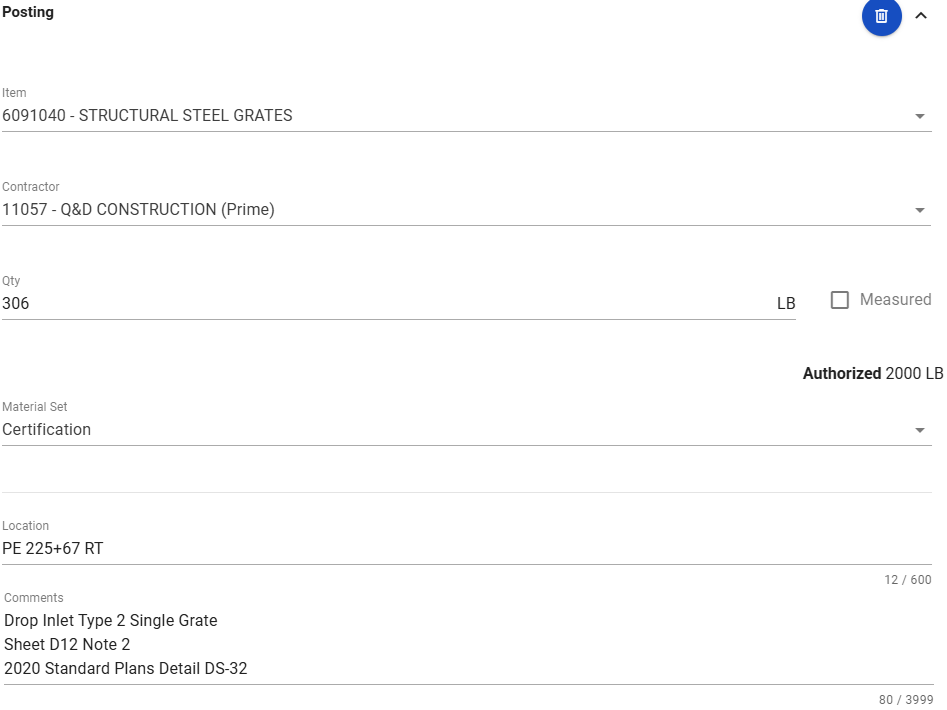
Example of Ton Item Posting
Aggregate and Roadbed Modification Items
Note: Inspectors on contracts using an e-Ticketing solution to track truck deliveries and associated weight totals for aggregate items will NOT collect computerized load tickets or complete the "Record of Delivery" spreadsheet.
In the current HaulHub e-Ticketing EDOT mobile application, Inspectors will add appropriate notes (temperature, stationing, waste, additional notes) to the e-Ticket and "Accept" or "Reject" the truck loads. The application records the quantity (gross, tare, and net) for each load delivered.
Aggregate Ton Items
- Retrieve all computerized load tickets and review for the following information:
- Date
- Material source
- Material type
- Gross, tare, net weights, and tons
- Cumulative total tons
- Time
- Contract Number
- Turn in ALL computerized load tickets into the Office Manager.
Note: In situations where computerized load tickets are not available (i.e., cold milled material for base), use volume calculations converted to weights. Refer to the Calculation Formulas topic in is Manual for details.
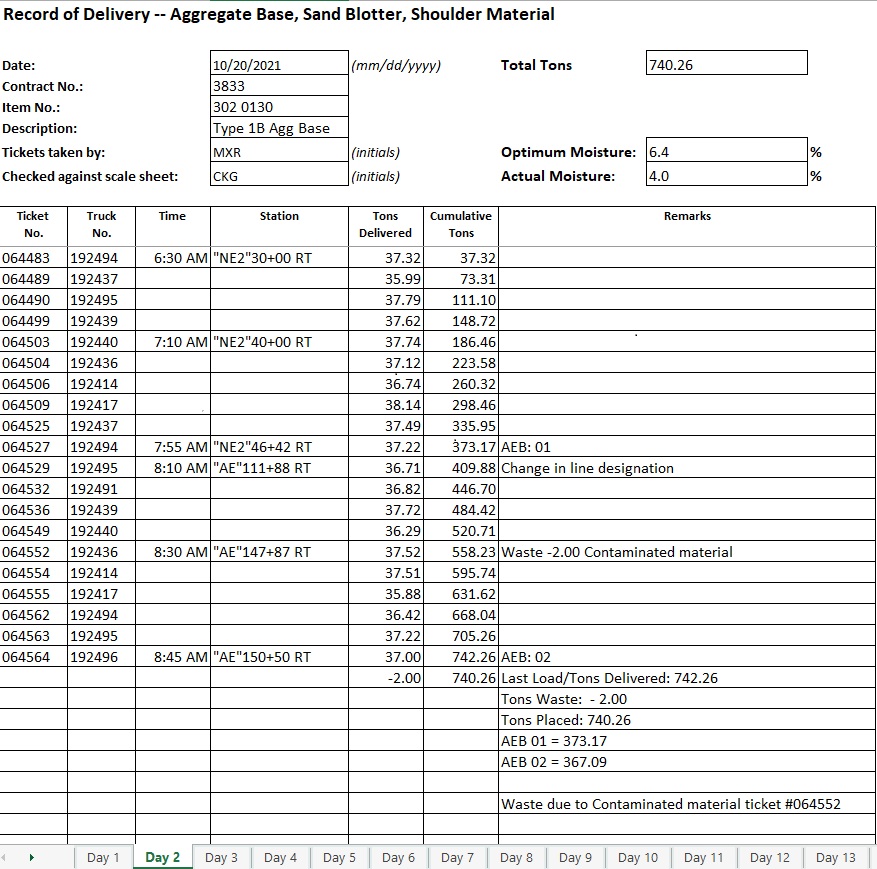
Record of Delivery – Aggregate Base Spreadsheet
The Record of Delivery – Aggregate Base spreadsheet is used to track the daily material delivered to the job site. The spreadsheet is used as part of the source documents for payment.
- Open the Record of Delivery – Aggregate Base spreadsheet from the appropriate crew Contract Files\Contract\08 Scale Weights & Certs\8.# directory.
- Record the following information from the computerized load tickets into the appropriate day tab in the spreadsheet:
- Date
- Contract Number
- Item Number
- Description: Item
- Tickets Taken By: Initials or name
- Ticket Number
- Truck Number
- Time: Every fifth load (Optional)
- Station: Beginning and Ending Station for the day and every change in line designations. Each station listed must have a line designation and LT, RT, or CL.
- Tons Delivered: From computerized load ticket, indicate any waste at the end of the day.
- Remarks: Explanations of changes in line designations and waste. State the total tons per AEB (category).
- SharePoint will automatically save the file as data is entered into the spreadsheet. Review entries and close the spreadsheet.
Roadbed Modification Ton Items
- Collect a Bill of Lading (B/L) for each delivery of Portland Cement.
- Record the contract ID in the upper right-hand corner.
- Check and initial all weight calculations.
- Turn into the Office Manager each day.
- Collect a Material Certification for each delivery of Portland Cement.
- Record the contract ID in the upper right-hand corner.
- Turn into the Office Manager each day.
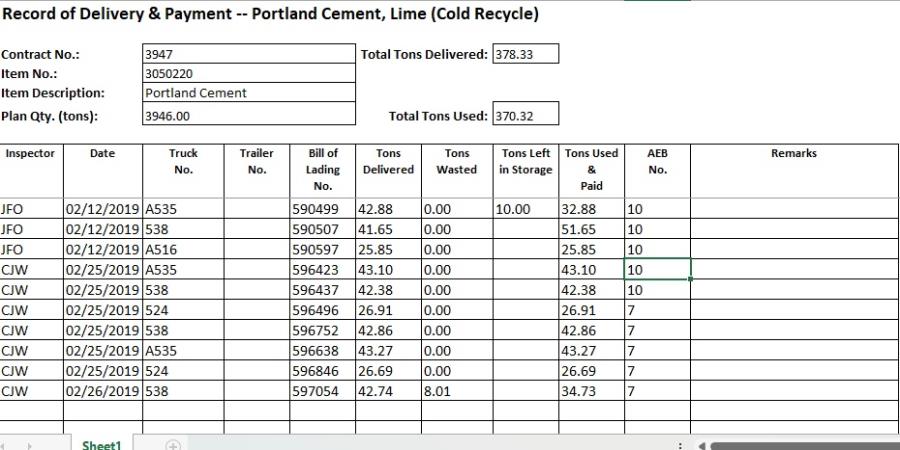
Record of Delivery and Payment – Portland Cement, Lime (Cold Recycle) Spreadsheet
The Record of Delivery and Payment – Portland Cement, Lime (Cold Recycle) spreadsheet is used to track the Bill of Ladings (B/Ls) for daily material delivered to the job site. The spreadsheet is used as part of the source documents for payment.
- Open the Record of Delivery and Payment – Portland Cement, Lime (Cold Recycle) spreadsheet from the appropriate crew SharePoint Contract Files > Contract > 08 Scale Weights directory.
- Record the following:
- Contract Number
- Item Number
- Description : Item
- Plan Qty.: Tons
- Inspector: Initials or name
- Date
- Truck No.
- Trailer No.
- Bill of Lading No.
- Tons Delivered
- Tons Waste
- Tons Left in Storage: What is left at the end of the day.
- AEB No.: AWP category
- Remarks: Leave blank for Office Manager comments for payment.
- SharePoint will automatically save the file as data is entered into the spreadsheet. Review entries and close the spreadsheet.
- Receive a copy of the current Job-Mix Formula from the Office Manager.
- Complete the 040-011A Daily Plant Inspector spreadsheet and attach it to a Mobile Inspector Report in the Details tab or to an AWP DWR in the Components Action Menu. The form is located in the iNDOT SharePoint NDOT Construction Forms page. Contact Construction Division Quality Assurance staff for assistance with this form.
- Make sure to record ALL plantmix wasted in the REPORT OF PLANTMIX QUANTITIES section of the 040-011A form.
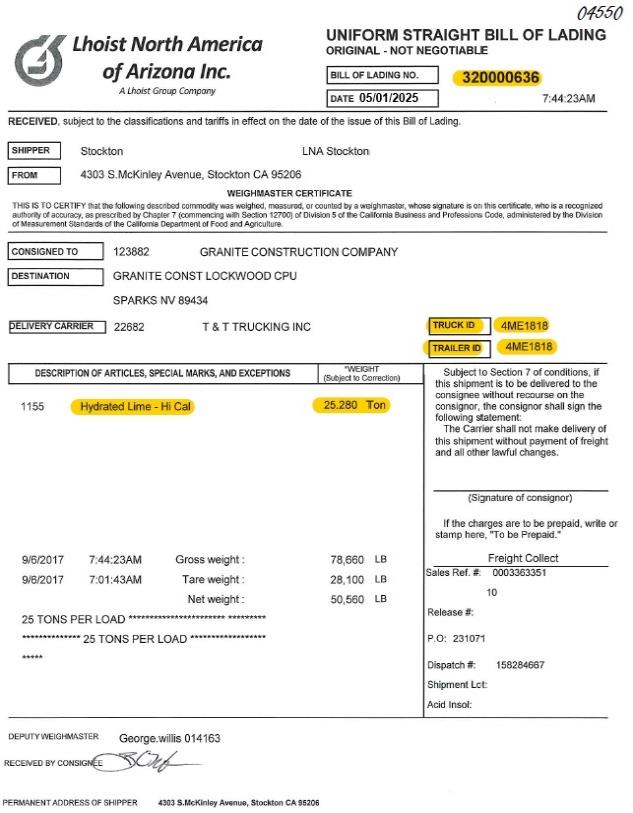
- Collect a Bill of Lading (B/L) for each delivery of asphalt cement and/or mineral filler.
- Record the contract ID in the upper right-hand corner.
- Check and initial all weight calculations.
- Turn into the Office Manager each day.
Note: The amounts in Tons Left in Storage will automatically be added to the next day’s Tons Used value. If there are any Tons Left in Storage at the end of the contract, they are considered waste and will be subtracted from the total tons used.
Plantmix and Recycled Surface Items
Note: Inspectors on contracts using an e-Ticketing solution to track truck deliveries and associated weight totals for plantmix and recycled surface will NOT collect computerized load tickets or complete the "Record of Delivery" spreadsheet.
In the current HaulHub e-Ticketing EDOT mobile application, Inspectors will add appropriate notes (temperature, stationing, waste, additional notes) to the e-Ticket and "Accept" or "Reject" the truck loads. The application records the quantity (gross, tare, and net) for each load delivered.
Hot Plant/Marination Inspector's Responsibilities – Plantmix Surfacing Items
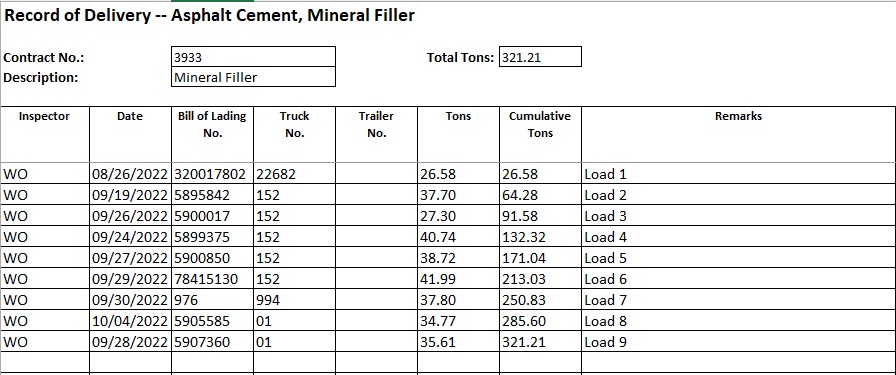
Record of Delivery – Asphalt Cement, Mineral Filler Spreadsheet
The Record of Delivery – Asphalt Cement, Mineral Filler spreadsheet is used to track the asphalt cement and mineral filler that was delivered to the project. A separate spreadsheet is used for each type of material. The spreadsheets are used as part of the source documents for payment.
- Open the Record of Delivery –Asphalt Cement, Mineral Filler spreadsheet from the appropriate crew SharePoint Contract Files > Contract > 08 Scale Weights directory.
- Record the following information from the B/L into the spreadsheet:
- Contract Number
- Description: Material type
- Inspector: Initials or name
- Date
- Bill of Lading No.
- Truck No.
- Trailer No.: If applicable
- Tons
- Remarks: Enter appropriate remarks per the direction of the Resident Engineer and Office Manager.
- SharePoint will automatically save the file as data is entered into the spreadsheet. Review entries and close the spreadsheet.
Plant Record Spreadsheet
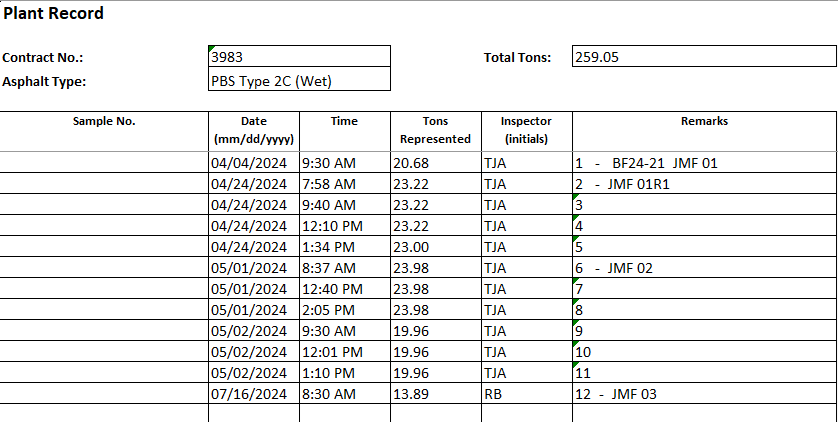
The Plant Record spreadsheet is used to track the materials samples taken each day. Refer to the Standard Specifications, Subsection 106.04, (Control of Material) Samples and Tests for details.
- Open the Plant Record spreadsheet from the appropriate crew SharePoint Contract Files\Contract\08 Scale Weights & Certs\8.# directory.
- Record the following information:
- Date
- Time: Mandatory on Plant Record spreadsheet
- Tons Represented
- Inspector’s initials
- Remarks: Enter appropriate remarks per the direction of the Resident Engineer and Office Manager.
- SharePoint will automatically save the file as data is entered into the spreadsheet. Review entries and close the spreadsheet.
Paving Inspector’s Responsibilities – Plantmix Surfacing Items
- Complete the 040-011B Daily Paving Inspector spreadsheet and attach to a Mobile Inspector Report in the Details tab or to an AWP DWR in the Components Action Menu. It is important that all information is accurate to what is shown in the Record of Delivery – Plantmix Surface spreadsheet for that day. The form is located in the iNDOT SharePoint NDOT Construction Forms page. Contact Construction Division Quality Assurance staff for assistance with this form.
- Retrieve all computerized load tickets and review for the following information:
- Date
- Material source
- Material type
- Gross, tare, net weights, and tons
- Cumulative total tons
- Time
- Contract Number
- Pit Number
- Turn in ALL computerized load tickets into the Office Manager each day.
Note: Make sure to record ALL Plantmix Wasted on the 040-011B form.
Record of Delivery – Plantmix Surface Spreadsheet
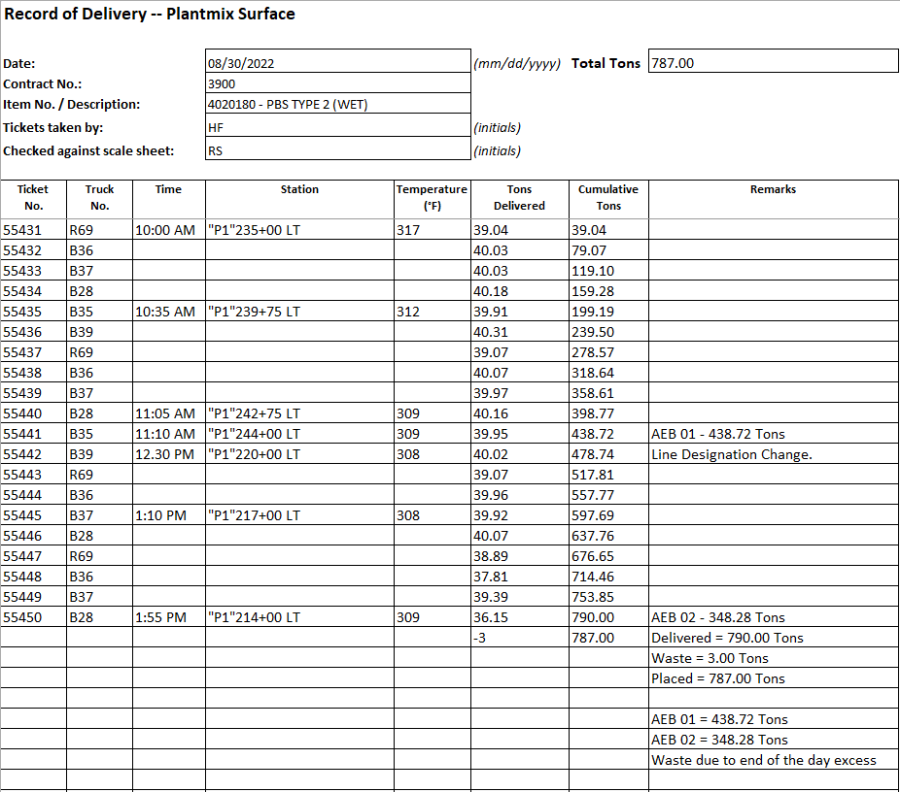
The Record of Delivery – Plantmix Surface spreadsheet is used to track daily material delivered to the job site. The spreadsheet is used as part of the source documents for payment.
- Open the Record of Delivery – Plantmix Surface spreadsheet from the appropriate crew SharePoint Contract Files > Contract > 08 Scale Weights directory.
- Record the following information from the computerized load tickets onto the appropriate day tab in the spreadsheet:
- Date
- Contract Number
- Item Number
- Description: Item
- Tickets Taken By: Initials or name
- Ticket Number
- Truck Number
- Time: Every fifth load (Optional)
- Station: Beginning and Ending Station for the day and every change in line designation. Each station listed must have a line designation and LT, RT, or CL.
- Temperature
- Tons Delivered: From computerized load ticket, indicate any waste at the end of the day.
- Remarks: Explanations of waste. State the total tons per AEB (category).
- SharePoint will automatically save the file as data is entered into the spreadsheet. Review entries and close the spreadsheet.
Note: Inspectors on contracts using the HaulHub mobile application will NOT complete Record of Delivery – Plantmix Surface spreadsheets. The Office Manager will use the HaulHub Delivery Report to track daily material delivered to the job site.
Recycled Bituminous Surface Items
- Collect a Bill of Lading (B/L) for each delivery of Lime (Cold Recycle).
- Record the contract ID in the upper right-hand corner.
- Check and initial all weight calculations.
- Turn into the Office Manager each day.
Record of Delivery and Payment – Portland Cement, Lime (Cold Recycle) Spreadsheet
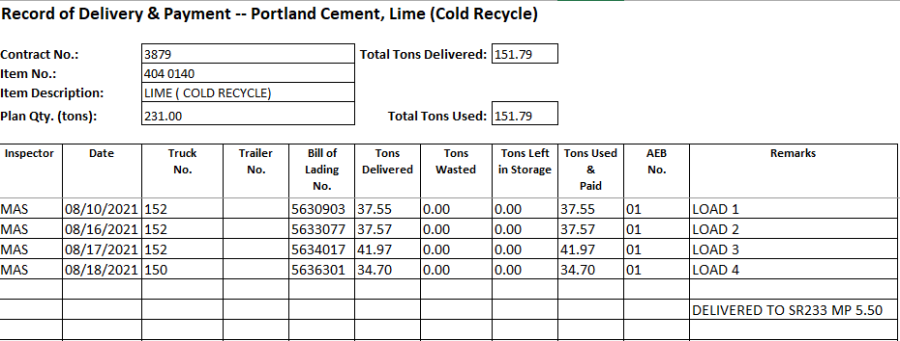
The Record of Delivery and Payment – Portland Cement, Lime (Cold Recycle) spreadsheet is used to track the Bill of Ladings (B/Ls) for daily material delivered to the job site. The spreadsheet is used as part of the source documents for payment.
- Open the Record of Delivery and Payment – Portland Cement, Lime (Cold Recycle) spreadsheet from the appropriate crew SharePoint Contract Files > Contract > 08 Scale Weights directory.
- Record the following:
- Contract Number
- Item Number
- Description: Item
- Plan Qty.: Tons
- Inspector: Initials
- Date
- Truck No.
- Trailer No.
- Bill of Lading No.
- Tons Delivered
- Tons Wasted
- Tons Left in Storage: What is left at the end of the day.
- AEB No: Category
- Remarks: Leave blank for Office Manager comments for payment.
- SharePoint will automatically save the file as data is entered into the spreadsheet. Review entries and close the spreadsheet.
Note: The amounts in Tons Left in Storage will automatically be added to the next day’s Tons Used value. If there are any Tons Left in Storage at the end of the contract, they are considered waste and will be subtracted from the total Tons Used.
Liquid and Emulsified Asphalt Items
Theoretical application rates are NOT permitted to be used to determine the total tons placed for payment of all Liquid and Emulsified Asphalt items.
Liquid Asphalts
Liquid Asphalts are typically used for prime coats and curing seals. These items are typically paid for by the square yard.
- Liquid asphalts are also referred to as cut-back asphalts and include MC-70, MC-250, etc.
- Liquid asphalts will be documented in the Record of Delivery—Liquid Asphalt and the Liquid/Emulsified Asphalt Application and Payment spreadsheets.
- When another material has been approved for use in lieu of the liquid asphalt, there may be different application rates and dilution factors that must be documented. Make sure to check the contract’s Special Provisions and/or the manufacturer’s recommendation to ensure proper application.
- Use the Agreement Estimate report as a reference to ensure that items and quantities are paid in the correct category (AEB).
- Information on Liquid Items are found on the Summary of Quantities sheets in the Contract plans.
- There are 3 ways to document the application of Liquid Asphalt:
- Total delivery (Bill of Lading)
- Weigh Back - Weighing the trucks over the Contractor’s scales
- Gallon Meter - List the following in the Remarks box of the posting tab in the Inspector’s DWR.
- Beginning meter reading
- Ending meter reading
- Gallons used
- In no case will the Liquid Asphalt pay quantity exceed the total certified asphalt delivered less any material wasted or left in storage.
Note: NDOT does not apply a Temperature Volume Correction factor.
Emulsified Asphalts
Emulsified Asphalts are typically used for tack coats, seal coats, chips seals and cold in place recycle. These items can be paid for by square yard, tons or they may be incidental to other items of work.
- Emulsified asphalts (CMS-2S, SS-1h, LMCRS-2H, etc.) will be documented in the Record of Delivery—Liquid Asphalt and the Liquid/Emulsified Asphalt Application and Payment spreadsheets.
- It is the Inspector’s responsibility to ensure proper dilution and application rates regardless of the item’s UOM.
- Emulsified asphalt is delivered either diluted or undiluted.
- If the emulsified asphalt is delivered diluted, verify the proper dilution ratios are on the Bill of Lading.
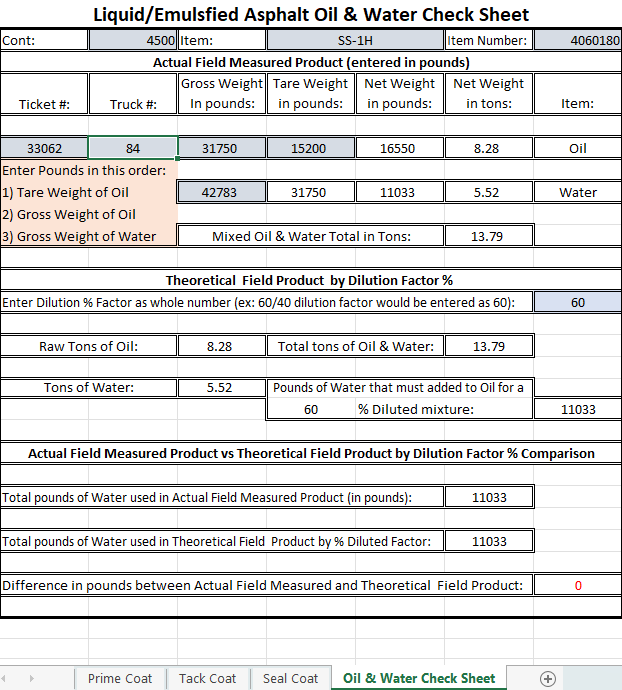
- If the emulsified asphalt is delivered undiluted, use the Oil and Water Check Sheet to verify the correct gallons of water were added.
- Once proper dilution is obtained for the specified application, measurement for payment and application rate can proceed.
- There are 3 ways to document the application of Emulsified Asphalt:
- Total delivery (Bill of Lading)
- Weigh Back - Weighing the trucks over the Contractor’s scales
- Gallon Meter - List the following in the Remarks box of the posting tab in the Inspector’s DWR.
- Beginning meter reading
- Ending meter reading
- Gallons used
- In no case will the emulsified asphalt pay quantity exceed the total certified asphalt delivered less any material wasted or left in storage.
Note: The Liquid/Emulsified Asphalt Oil and Water Check Sheet is designed to assist the inspector in determining the correct pounds/tons of water added to the oil to get the approved oil/water ratio. Refer to the Liquid/Emulsified Asphalt Oil and Water Check Sheet in the Fourth tab of the Liquid/Emulsified Asphalt Application and Payment spreadsheet.
Note: NDOT is no longer applying a Temperature Volume Correction factor.
Liquid/Emulsified Asphalt Items
- Collect a Bill of Lading (B/L) for each delivery of liquid/emulsified asphalt.
- Record the Contract ID in the upper right-hand corner.
- Check and initial all weight calculations.
- Turn into the Office Manager each day.
- Collect a Material Certification for each delivery of Liquid and Emulsified asphalt.
- Record the Contract ID in the upper right-hand corner if you receive a paper copy.
- Turn into the Office Manager each day.
- It is the Inspector’s responsibility to ensure proper dilution and application rates regardless of the item’s UOM or payment.
Note: Each B/L for emulsified asphalts must show the weight of raw asphalt separately from the water added or show the mix percent. If the emulsified asphalt is delivered without this information on the B/L, the Resident Engineer shall inform the Contractor that it is unacceptable, and any application shall be done without payment. The B/L must plainly state whether the material was delivered diluted or undiluted. The Inspector is responsible for documenting (on the B/L) the weight of raw asphalt separately from the water added.
Record of Delivery—Liquid/Emulsified Asphalt Spreadsheets
The Record of Delivery – Liquid Asphalt and Emulsified Asphalt (Diluted/Undiluted) spreadsheets are used to track the asphalt delivered to the job site. Separate spreadsheets will be provided for liquid asphalts and emulsified asphalts (dilute)/(undiluted). The spreadsheets are used as part of the source documents for payment.
- Open the Liquid/ Emulsified Asphalt Application and Payment spreadsheet from the appropriate crew SharePoint Contract Files > Contract > 08 Scale Weights directory.
- Select the appropriate Record of Delivery tab at the bottom of the spreadsheet and record the following:
- Inspector’s initials
- Date delivered (May not be the same date the load was applied.)
- Truck No.
- Trailer No. If applicable
- Bill of Lading No.
- Tons delivered
- Remarks
- SharePoint will automatically save the file as data is entered into the spreadsheet. Review entries and close the spreadsheet.
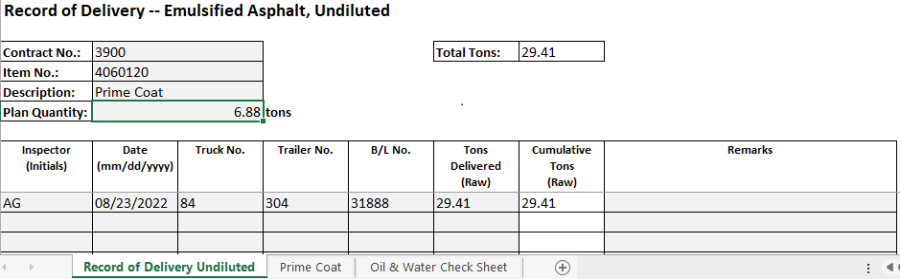
Note: The following example shows the 4070190 - Emulsified Asphalt, Type SS-1H (Diluted) item used for Seal Coat.
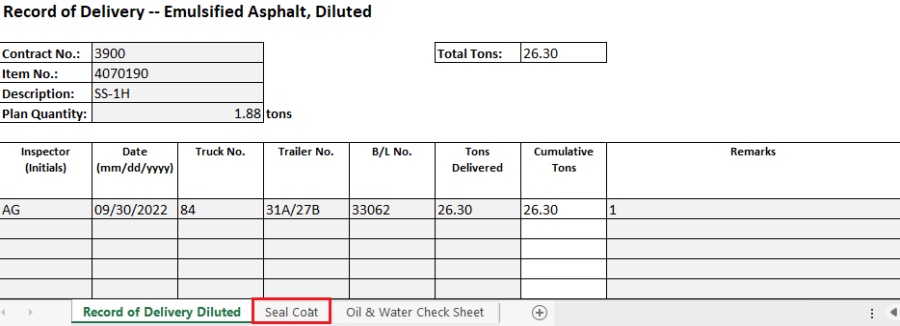
Liquid/Emulsified Asphalt Application and Payment Spreadsheet
The Liquid/Emulsified Asphalt Application and Payment spreadsheet is used to track asphalt applications, payments and oil/water ratios. Each liquid/emulsified asphalt bid item will be documented on a separate spreadsheet. The spreadsheet is used as part of the source documents for payment.
- Open the Liquid/Emulsified Asphalt Application and Payment spreadsheet from the appropriate crew SharePoint Contract Files > Contract > 08 Scale Weights directory.
- Select the appropriate tab at the bottom of the spreadsheet: Prime Coat, tack Coat, or Seal Coat.
- Record the following:
- Contract Number
- Item Description
- Item Number
- Dilution % Factor: Enter as whole number (60/40 mix enter as 60)
- Bill of Lading Tons Delivered per day: If item is delivered diluted, enter tonnage per day and place 100 in Dilution % Factor
- Insp: Inspector initials
- Date
- Station to Station: Complete station to station, including line designation and LT, RT, or CL.
- Length: Actual length measured in feet, NOT ‘Station to Station’.
- Width: Actual Width measured in feet, NOT ‘Varies Width’.
- For Total SQYD, Gallons, and App Rate:
- Enter Length, Width and Gallons (Using the digital meter from the truck; take the beginning read minus the ending read for the gallons placed). If using the Bill of Lading tons or the Weighback tons, the calculation is provided on the Liquid/Emulsified Asphalt and Payment spreadsheet to determine.
- Once the gallons are determined and entered, the computer will calculate the Tons and the App. Rate column. When entering the gallons per stationing, the App. Rate is calculated for that station only. When there are multiple stations but are only documenting the total gallons placed for the day on the last line, the spreadsheet will calculate the App. Rate for that last station only; however, it will total the the SQYDs, Gallons, Tons and App. Rate for the entire day at the bottom of the page.
- If at any time the "Total Tons Remaining (Diluted)" number is red, there were not enough Bill of Ladings (B/L) collected to cover the material placed. If this is the case, obtain additional B/Ls.
- Remarks: Add the Category/AEB of where the material is to be paid. If paid in more than one Category/AEB, break out how much are paid in each. If the item is incidental, document how much was incidental. If paid by the SQYD, add the total SQYD per day to show how much SQYD will be paid on the estimate.
- SharePoint will automatically save the file as data is entered into the spreadsheet. Review entries and close the spreadsheet.
- If the total tonnage placed was based off reading the gallon meter, the Inspector must document the beginning and ending meter reading and the gallons used in the Remarks box of the posting tab in the DWR.
- If the truck sprays completely out, the total tons delivered listed on the Bill of Lading (B/L) must be converted to gallons by applying the formula listed in the top right corner of the spreadsheet. The total gallons must then be documented in the "Gallons" field and the computer will automatically fill in the Tons field.
- If a weighback is needed and provided, then the total tons placed according to the weighback must be converted into gallons and documented in the "Gallons" field.
- If the entire truck was not sprayed out and the Contractor does not provide a weighback ticket, or a working gallon meter reading, Liquidated Damages will be assessed per the Special Provisions, Subsection 109.02, (Measurement and Payment) Scope of Payment.
- It is the Inspector’s responsibility to verify that the application rate falls within an acceptable range according to the Standard Specifications.
Note: Pay will be based on delivery minus waste and/or material left in storage, not based on the application rate. In no case will the liquid asphalt pay quantity exceed the certified total asphalt delivered, less any wasted material and less any material left in storage.
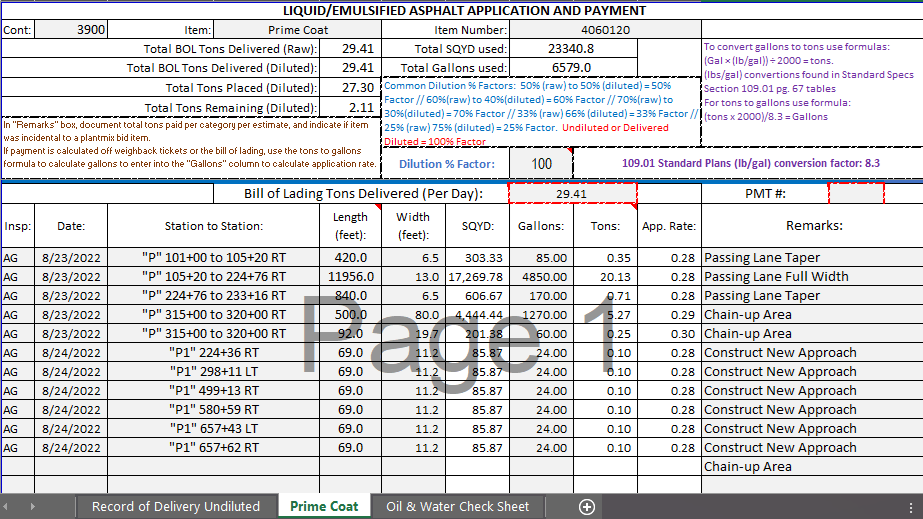
Note: The following examples show the 4070190 - Emulsified Asphalt, Type SS-1H (Diluted) item used as both a Tack Coat and a Seal Coat.
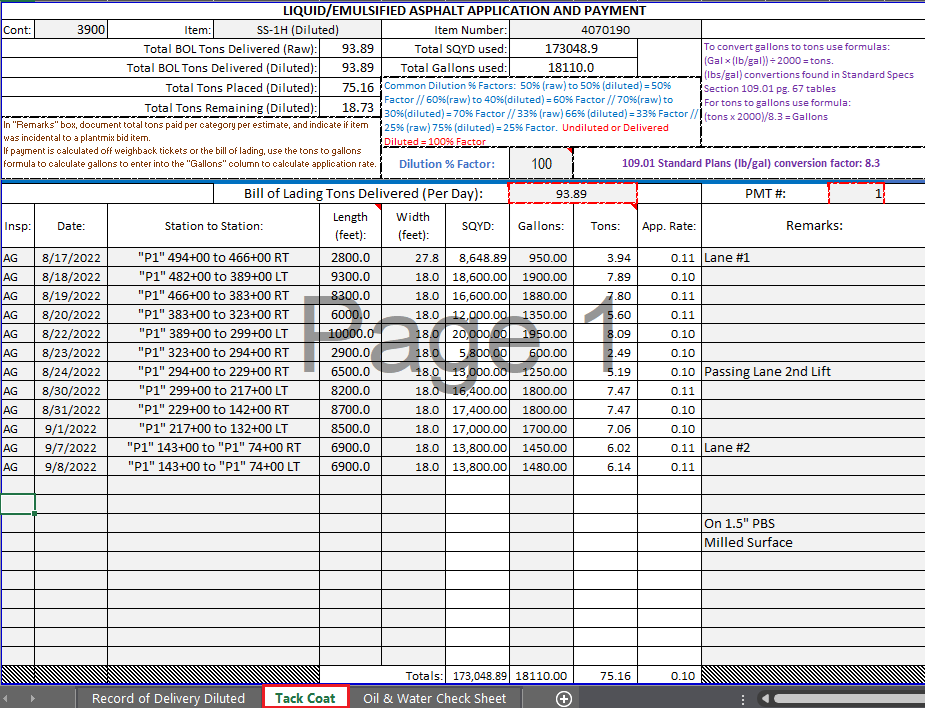
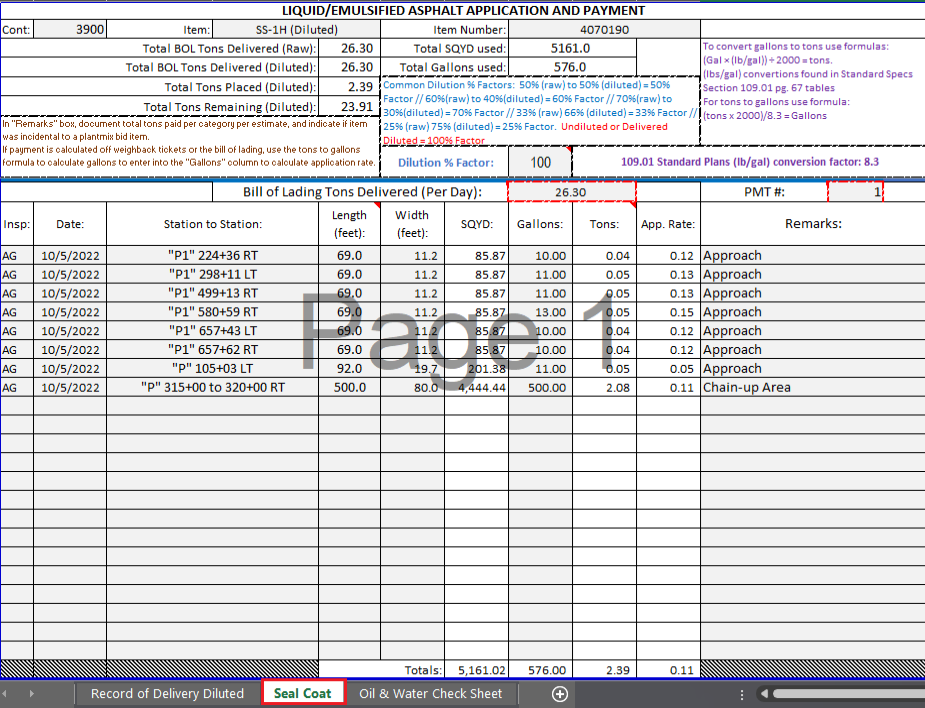
NOTES for Emulsified Asphalt item postings only:
Oil and Water Check Sheet
When the emulsified asphalt is delivered raw and placed in a tank, obtain a tare weight on the distributor truck before the asphalt and water is added. When the asphalt is added, the truck will be weighed and then weighed again when the water is added. The ratio of oil to water will vary depending on the specification and the type of material. Make sure to check the Special Provisions to ensure the correct ratio is being used. When the truck is finished spraying for the day, the truck will be weighed once again to determine what was placed for the day, as shown below. Use the Oil and Water Check Sheet to verify the dilution rates are correct.
Note: Make sure that any water ratio calculations are documented on the Bill of Lading sheets.
Note: Check the Manufacturer’s Recommendation for the specific material and the Special Provisions for the contract to assure the correct oil/water ratio is being applied.
- Open the Liquid/Emulsified Asphalt Application and Payment spreadsheet from the appropriate crew SharePoint Contract Files > Contract > 08 Scale Weights directory and go to the Oil & Water Check Sheet tab.
- Record the following:
- Contract No.
- Item Description
- Item No.
- Ticket No.
- Truck No.
- Gross weight in pounds: (Oil and Water)
- Tare weight in pounds (Oil)
- Dilution % Factor
- SharePoint will automatically save the file as data is entered into the spreadsheet. Review entries and close the spreadsheet.