Contract Start Up
This topic provides guidance on the following:
- AWP Contract Activation Emails
- AWP Contract Review and Updates
- Electronic Organization of Contract Documentation
- Setting Up the Contract Files Directory Template on SharePoint
- Descriptions of Contract Files Directories
- Safety Checklist Contractor Operations Form
AWP Contract Activation Emails
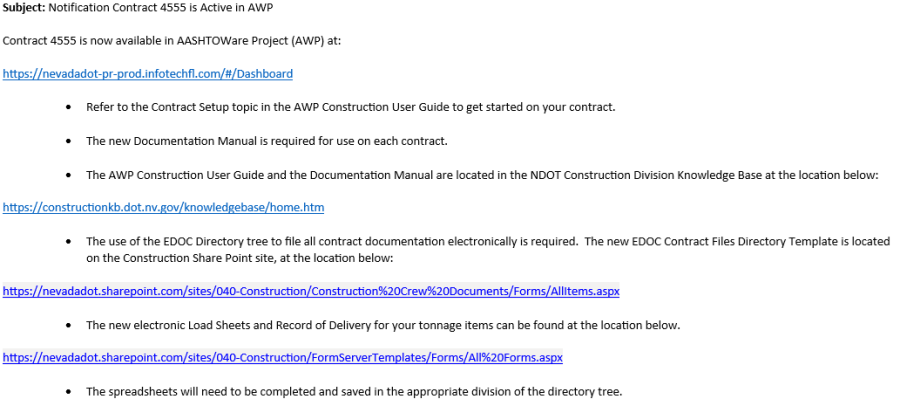
At the beginning of a contract, the Resident Engineer and crew staff will receive emails containing the following information necessary for contract documentation start-up:
- Notification that the contract has been loaded in AWP Construction & Materials™ (AWP) and contract materials have been set up. (Materials Division)
- Notification of AWP PROD URL, Location of the Documentation Manual, AWP Construction User Guide, Contract Files.zip file, and when applicable, the location of the Record of Delivery spreadsheets and the Liquid/Emulsified Asphalt Application and Payment spreadsheet. (Construction Admin Services Section)
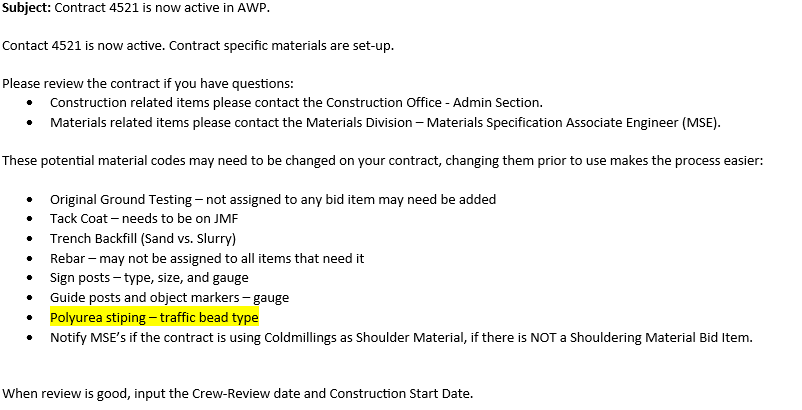
Important: DO NOT open the AWP contract until you receive this email from the MSE.
AWP Contract Review and Updates
Complete a thorough review of the awarded contract in AWP. Refer to the Reviewing and Setting Up a Contract topic in the AWP Construction User Guide for the complete steps for reviewing an awarded contract.
AWP Contract Administration Component
- Enter and review the following information in the contract's AWP Contract Administration Summary at the start of a contract. The links below navigate to the corresponding location in the AWP Construction User Guide.
- Contract Authority Tab
- Add contract-specific authority for each user (e.g., Mobile Inspector users (Inspectors, Sup 1, ARE), staff on loan from another crew, consultants) needing access to the contract. Note: Users can be added to this area at any point of the contract.
- Contract Times Tab: Informational Times
- Enter the CREW-REVIEW Informational Time AFTER completing the entire review of the contract. This informational time is required for generating Daily Work Reports (including the importing of Mobile Inspector Reports), Daily Diaries, and Payment Estimates.
- Enter the ConstStartedDate Informational Time (Construction Started Date). This informational time is required for FHWA performance measures.
- Contract Times Tab: Main Site Time
- Units and Dates tab: Confirm the Time Charges Start Date (Notice To Proceed (NTP)) is correct. If the contract has been suspended at NTP, change this date to the date the contract will resume charging time (days charged).
- Suspend/Resume Events tab: When a contract is suspended at NTP, enter a suspend record and the corresponding resumption record when time has resumed. Attach the suspend and resume memos to the record. Note: These events can be added at any point of the contract.
- Permits Tab
| User | AWP Role(s) |
| Crew Mobile Inspector users (e.g., Inspectors, Sup 1, ARE) | MobileInspector |
| Inspector (on loan from another crew) | MobileInspector, NV Inspector, NV Materials Inspector* (if applicable) |
| Tester (on loan from another crew) | NV Materials Tester* |
| Office Manager (on loan from another crew) | NV Crew Office, NV L1 Estimate Generator, NV Materials Reviewer* |
| Consultant Inspector | MobileInspector, NV Inspector, NV Materials Inspector* (if applicable) |
| Consultant Tester | NV Materials Tester* |
| Consultant Office Person | NV Crew Office, NV L1 Estimate Generator, NV Materials Reviewer* |
| Consultant Assistant RE | NV Crew Office, NV L1 Estimate Generator, NV L2 Estimate Review, NV L3 Estimate Approve, NV Materials Authorizer* |
| *IMPORTANT: Send an email to Terry Fitch - tfitch@dot.nv.gov and Cc Kristen McDaniel - kmcdaniel2@dot.nv.gov indicating the user requires access to the crew's field lab. | |
AWP Contract Items Component
- Review the AWP Contract and Project Category Items at the start of a contract. Refer to the Reviewing Contract and Project Category Items topic in the AWP Construction User Guide for details.
- Engineer's Estimate Report - Agreement Estimate
- Estimate Quantities by Breakout Report
- Bid Items Summary Report
MasterWorks Reports
The reports to aid in the review of the AWP Contract and Project Category items include the Engineer's Estimate Report - Agreement Estimate, the Estimate Quantities by Breakout Report, and the Bid Item Summary Report. These reports are found in the NDOT MasterWorks program. Refer to the MasterWorks How To Guide for the details on accessing these reports.
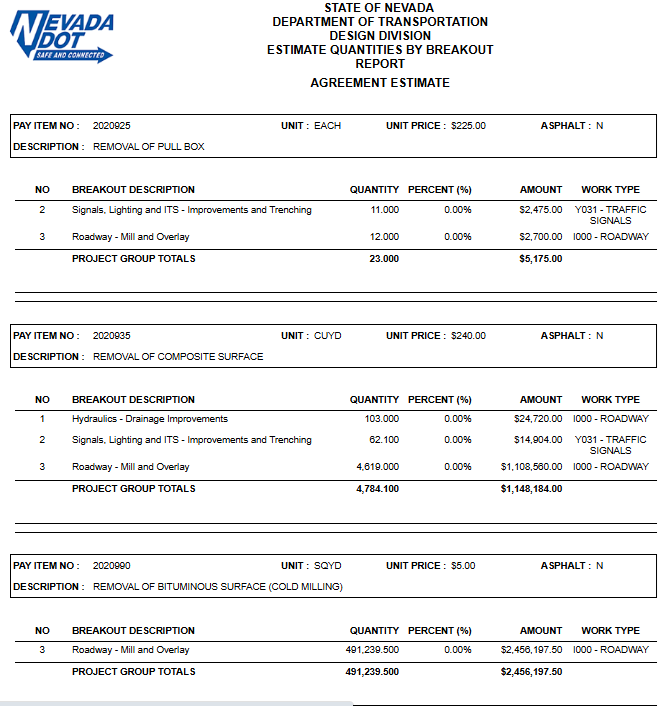
This report identifies construction type codes, funding sources, bid items and bid item quantities by project and Agreement Estimate Breakout (AEB). In the AWP program, an AEB is referred to as a category. Categories (AEB) in a contract are established for each different type of construction (major structure, urban roadway, rural roadway, etc.), by the Division (Design, Environmental, Hydraulics, Location, Structures, Maintenance and Asset Management) designing the work and by the different funding sources (State - C1C, Federal - C2C, Other - C3C, i.e. County, City, Utilities, etc.). The category (AEB) numbers assigned will be used when documenting or posting pay items and may not be changed or modified. All construction crew personnel will be familiar with the Engineer's Estimate Report - Agreement Estimate report, and are expected to record all quantities of items used on the contract according to the category (AEB) shown therein.
Engineer's Estimate Report - Agreement Estimate Example
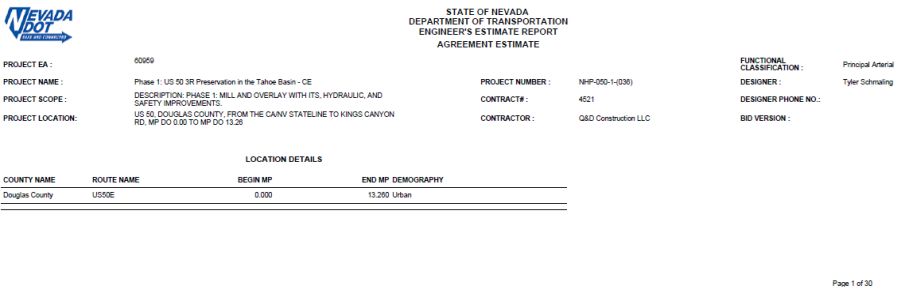
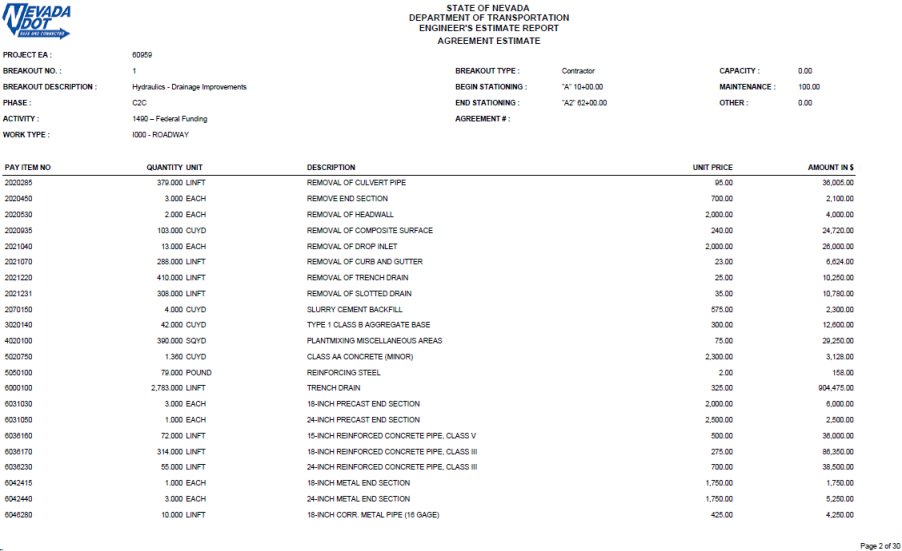
This report identifies bid items by the AEB (category) where they reside. Information found in the report includes the Unit Price, Quantity, Extended Amount, and Work Type.
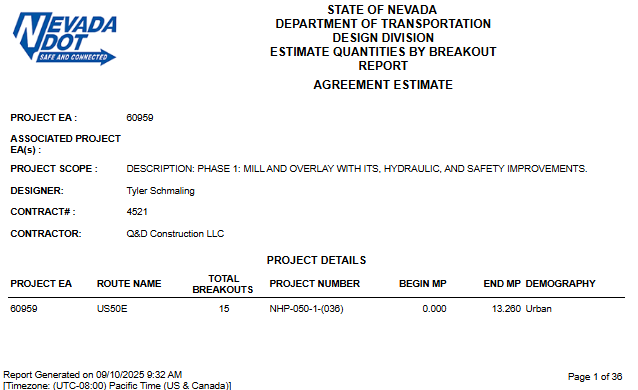
This report identifies the overall quantities of the items in a contract.
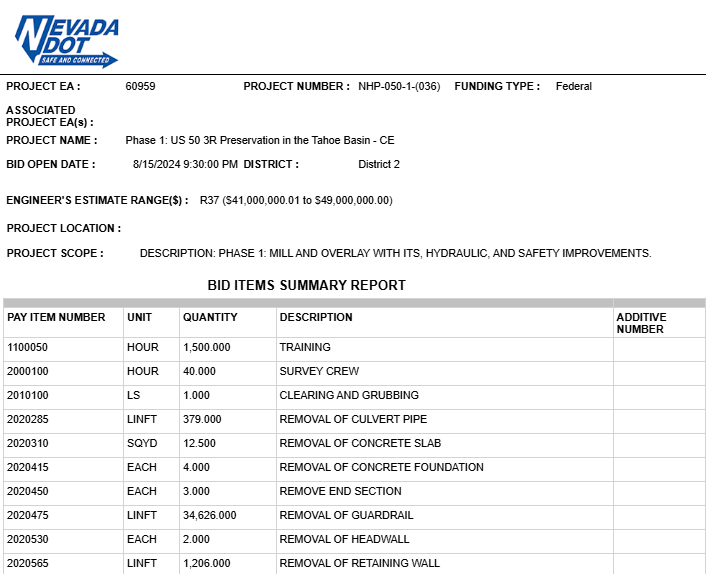
IMPORTANT: In AWP, all Lump Sum (LS) item quantities are displayed with the actual dollar amount of the item and the Unit Price is always displayed as $1.00.
Electronic Organization of Contract Documentation
All field office records for each contract must be organized in the standardized Contract Files directory template. Utilizing this directory template on each contract will enable crew personnel, headquarters personnel, District personnel, FHWA, etc. to locate contract information consistently.
The directory template contains the following major file directories and file index:
- Contract Files
- Contract
- Materials
- XXXX FILE INDEX.xlsx
The Contract and Materials directories have been set up with sub-directories (divisions) which cannot be renamed. These sub-directories (divisions) contain additional sub-directories which are examples and can be renumbered, renamed, deleted and new sub-directories can be added as necessary, per the contract. It is acceptable to have non-sequential sub-directory numbers in the case when a sub-directory is deleted.
Setting Up the Contract Files Directory Template on SharePoint
The directory template is set up in a ZIP file. Set up a separate directory template for each contract.
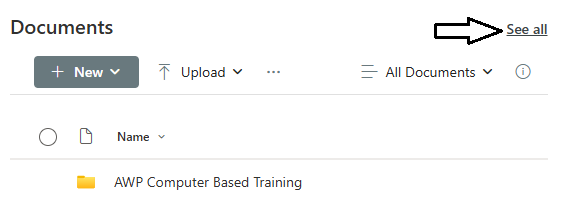
- Go to the SharePoint Construction Crew Portal, Construction Crew Documents, page and click on See all.
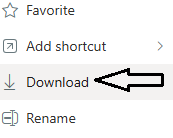
- Find the Contract Files.zip file and click on the More Actions ellipses.
- Select Download.
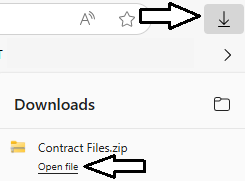
- Go to the browser Downloads area and click on Open File.
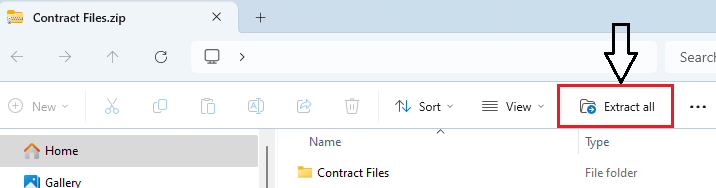
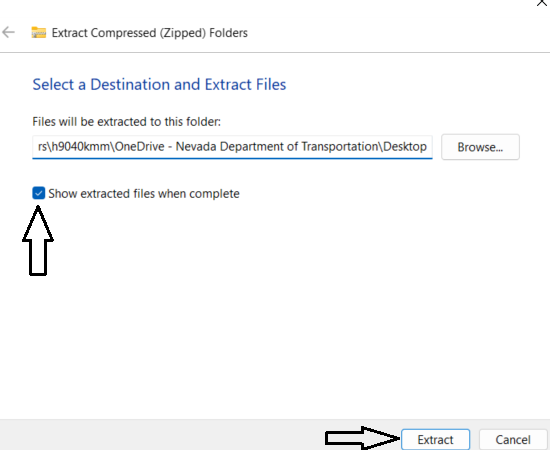
- Windows Explorer will open. Click on Extract all.
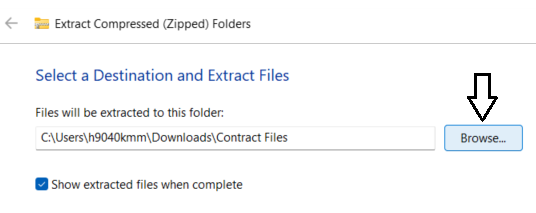
- Click on the Browse button to select the Destination.
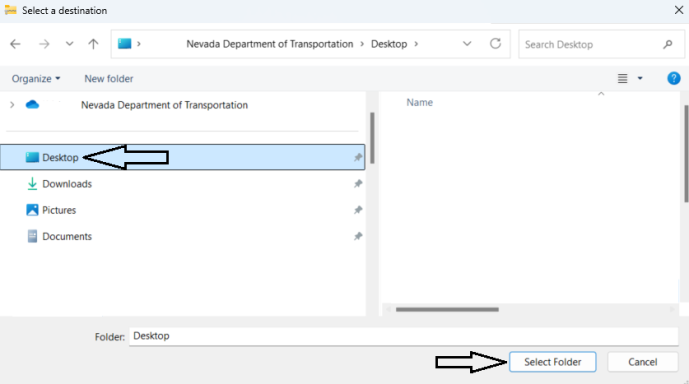
- In the Select a destination window browse to the Desktop, select it, and click on the Select Folder button.
- Check the Show extracted files when complete box and click the Extract button.
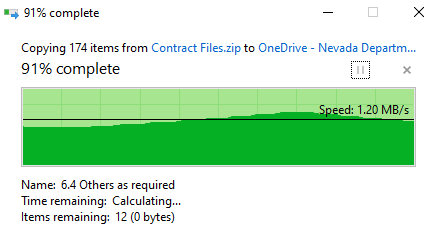
- A copy status window will open while the zip file copies (extracts) the files.
- When the files are done copying, Windows Explorer will open showing the Contract Files directory.
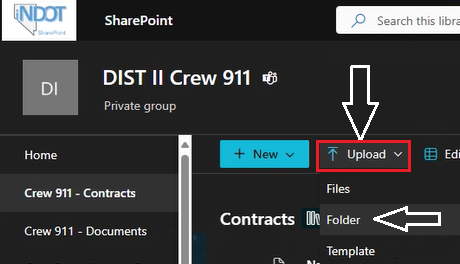
- Open the crew SharePoint location where the contract files will reside (e.g., DIST II Crew 911 - Contracts). Click on the Upload button and then select Folder.
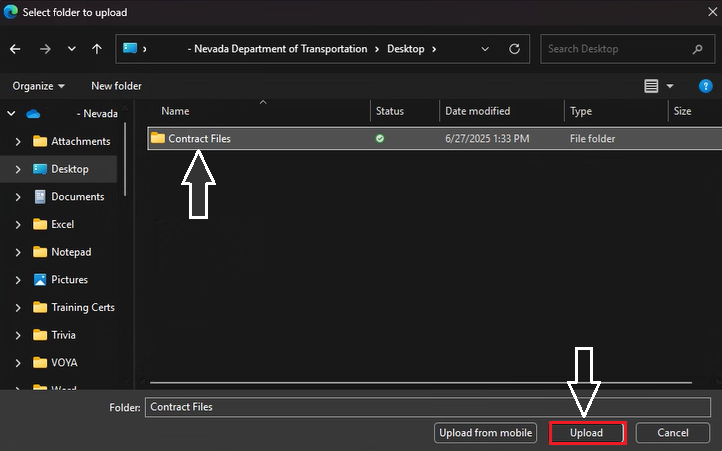
- A Select folder to upload window opens. Browse to the Desktop, select the Contract Files directory, and click the Upload button.
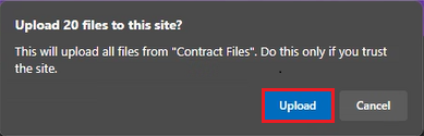
- An upload message will display. Click the Upload button.
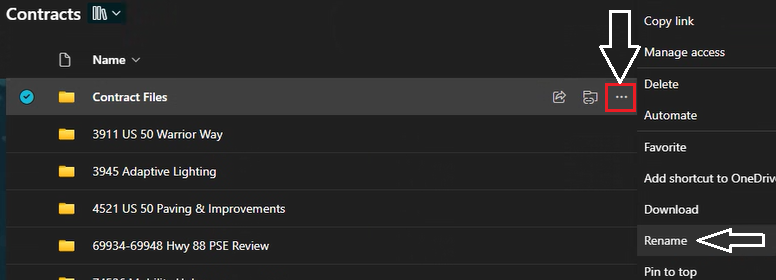
- The Contract Files directory is now listed. To rename the directory click the ellipse and select Rename.
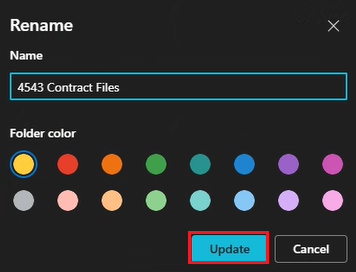
- Enter the appropriate contract ID and click the Update button.


Descriptions of Contract Files Directories
The Contract Files directory template contains two sub-directories (Contract and Materials) and a file index spreadsheet. Each sub-directory contains additional sub-directories (Divisions) explained in the following sections.
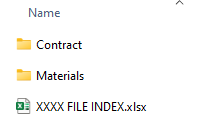
The XXXX FILE INDEX.xlsx spreadsheet contains the information Construction Admin Services will pick up at the time of contract closeout. Rename this file by replacing the XXXX with your contract ID. Update the records in this index, so it corresponds to the changes made to the sub-directory names in each Division on the crew share drive.
Contract Files
The Contract Files/Contract directory consists of 17 sub-directories (divisions). Each sub-directory will be explained later in this topic. Do not rename these sub-directories (divisions).
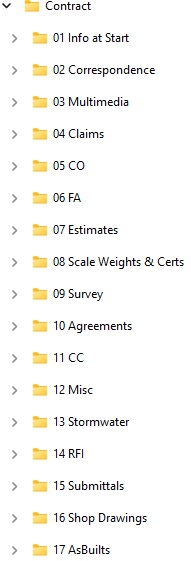
Note: The sub-directories within the 01 - 14 divisions can be changed per the contract.
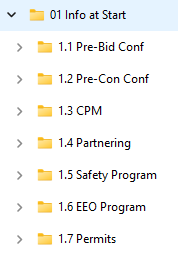
01 Info at Start
This sub-directory contains documents furnished to the Resident Engineer at the beginning and during the contract.
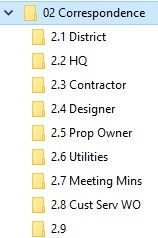
02 Correspondence
This sub-directory contains correspondence (including emails) relative to the contract. Email file names should include the contract ID and a short description of the email message. It is recommended the entire email message from MS Outlook (.msg file) be saved.
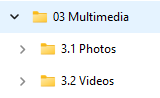
03 Multimedia
This sub-directory contains the photographs and videos related to a contract. Create sub-directories in this location to organize photos and videos as needed. Use short file names for individual photos and/or videos.
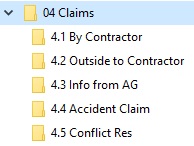
04 Claims
This sub-directory contains claims or information concerning claims pertaining to the contract. Separate sub-directories are required for each individual claim.
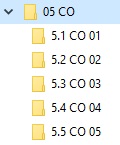
05 CO
This sub-directory contains the AWP Change Order reports, all supporting documents, and justifications. Separate sub-directories are required for each change order.
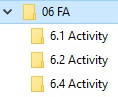
06 FA
This sub-directory contains the original Daily Costs of Force Account with Standby sheets, invoices, fringe benefit statements, force account recap sheets, and other required information described in the Force Account topic in this knowledge base. Separate sub-directories are required for each Force Account Item and each individual category. Give each Force Account sub-directory a short name describing the activity.
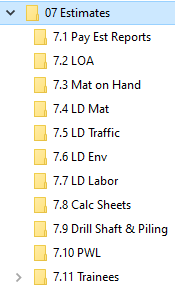
07 Estimates
This sub-directory contains reports related to the bi-weekly Construction payment estimates and supporting documentation. Separate sub-directories are required for each item.
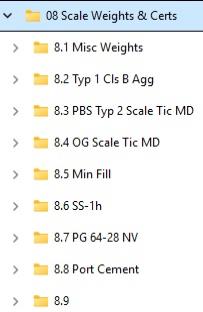
08 - Scale Weights & Certs
This sub-directory contains the Record of Delivery spreadsheets, Bill of Ladings (B/L), delivery tickets, and all certifications for items paid by the ton (e.g., Plantmix, Emulsified/Liquid Asphalt, Portland Cement/Lime, Aggregate Base). Separate sub-directores are required for each item.
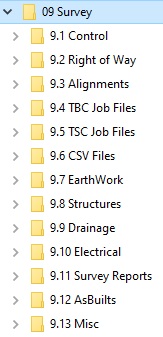
09 Survey
This sub-directory contains survey related data. Separate sub-directories are required for each item.
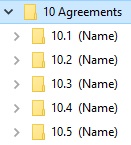
10 Agreements
This sub-directory contains agreements received pertaining to utilities, right-of-way, developers, land owners, entities, etc. Separate sub-directories are required for each agreement.
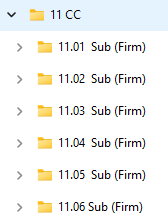
11 CC
This sub-directory contains Contract Compliance (CC) correspondence relative to Subcontractor agreements. Separate sub-directories are required for each Subcontractor.
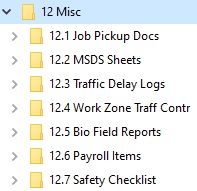
12 Misc
This sub-directory contains items which may be necessary to file but are not covered elsewhere. Separate sub-directories are required for each item.
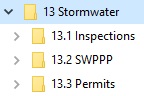
13 Stormwater
This sub-directory contains Stormwater reports and information. Separate sub-directories are required for each item.
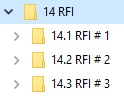
14 RFI
This sub-directory contains copies of all Request For Information (RFI). All original RFIs will be distributed as necessary. Separate sub-directories are required for each RFI.
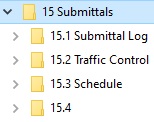
15 Submittals
This sub-directory contains all Submittals. One copy of the submittal will be retained and filed, the rest will be distributed as necessary. When the approved/stamped copies are returned, retain and file one or more as needed and send the remainder to the Contractor. The submittal is also filed with all related backup and correspondence. Separate sub-directories are required for each submittal.
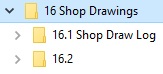
16 Shop Drawings
This sub-directory contains Shop Drawings. One copy of each shop drawing will be retained and filed. The remainder of the drawings will be distributed as necessary. When the approved/stamped copies are returned, retain and file one or more as needed and send the remainder to the Contractor. File all correspondence and related backup documentation with the shop drawing. Separate sub-directories are required for each shop drawing.
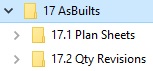
17 AsBuilts
This sub-directory contains all plan sheets and quantity revisions. All information shall be used to complete the As-Built Plans before the final closeout.
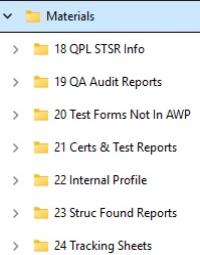
Materials
The Contract Files/Materials directory consists of 7 sub-directories. Each will be explained in this topic. Make sure to check with the Materials Division on items which are added to the contract through change orders to see if samples or certifications are required. Do not rename these directories.
Note: Direct any questions concerning filing in these sub-directories to Construction Division Quality Assurance staff.
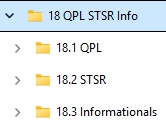
18 QPL STSR Info
This sub-directory contains the Qualified Product List (QPL) received at the start of a contract from the Materials Division, copies of the STSR Summary report (saved every two weeks), and Contractor's informational test reports. The QPL will include important information and should be reviewed upon receipt.
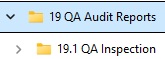
19 QA Audit Reports
This sub-directory contains all audit results conducted by Construction Division Quality Assurance staff.
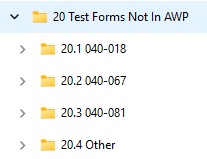
20 Test Forms Not In AWP
This sub-directory contains forms for tests not recorded within AWP (e.g., 040-018, 040-067, 040-081). This sub-directory will be included in the files included for contract closeout (EDOC Checklist).
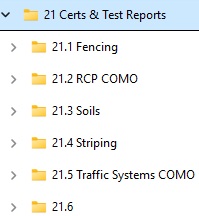
21 Certs & Test Reports
This sub-directory contains material certifications, COMO, and Contractor test results. Use the Certification Tracking Power BI report to aid in sub-direcory names.
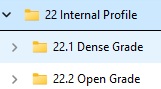
22 Inertial Profile
This sub-directory contains copies of profile reports provided by the Contractor. The original reports are sent to Construction Division Quality Assurance. Separate sub-directories are required for each item.
23 Struc Found Reports
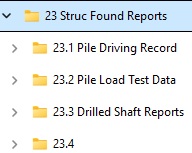
This sub-directory contains copies of Structure Foundation Pile Driving Records, Structure Foundation Inspection Records, Pile Load Test Data Sheets, Drilled Shaft Inspection Reports, Cross-hole Sonic Logging Sheets, and any other information relating to pile driving and structure foundation. The original test reports are sent to Construction Division Quality Assurance. Separate sub-directories are required for each type of material.
24 Tracking Sheets
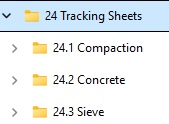
This sub-directory contains tracking sheets for material compactions, sieves and concrete.
Safety Checklist Contractor Operations Form
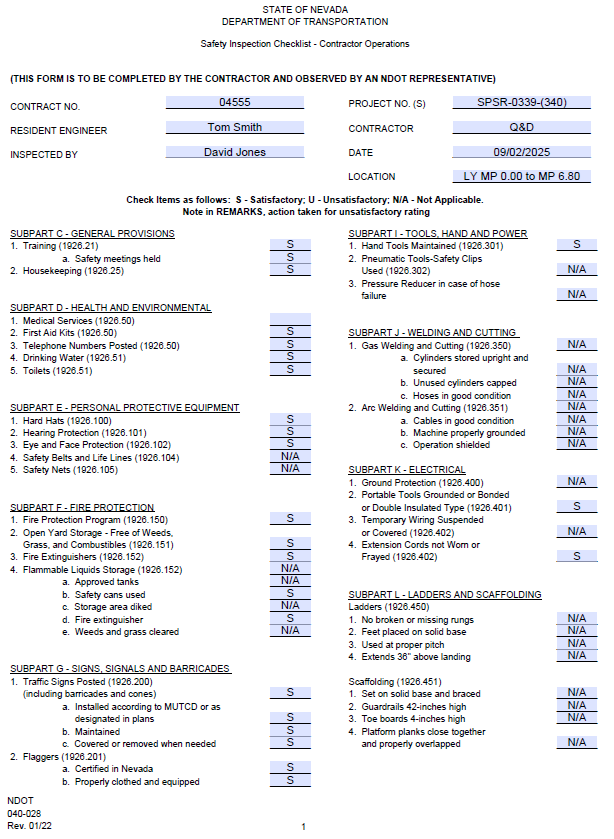
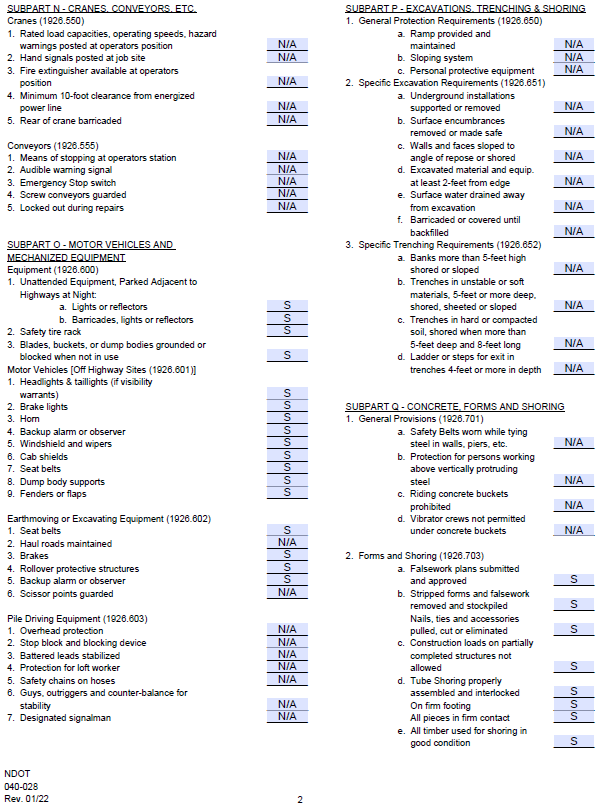
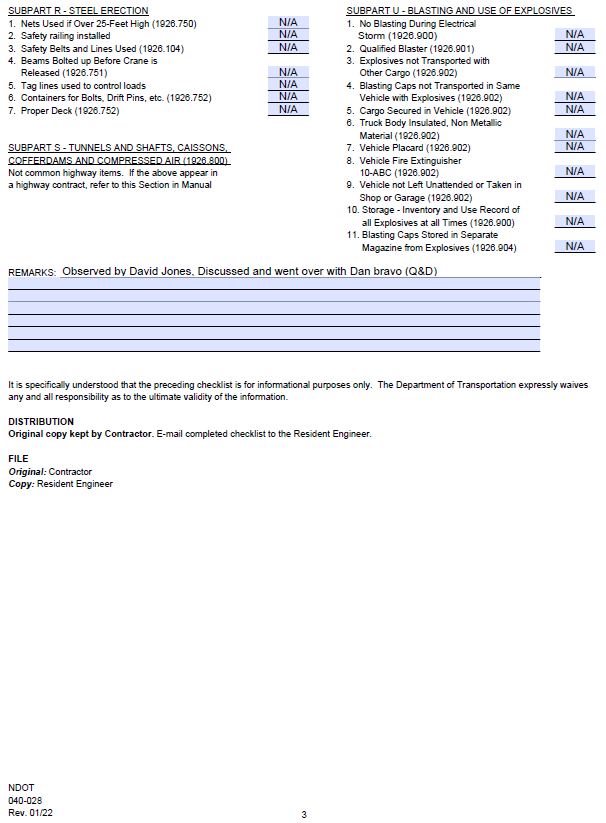
The "040-028 Safety Checklist Contractor Operations" form has been developed to aid in monitoring safety conditions on a contract. This form is located in the Construction Forms Quality Assurance area on the NDOT website.
The Safety Checklist Contractor Operations form must be completed by the Contractor at the start of a contract and a copy turned into the NDOT field office. The Contractor will keep the original form. On contracts of long duration, a new checklist must be completed and submitted once a year.
All Safety Checklist Contractor Operations forms will be saved electronically in the Contract Files\Contract\12 Misc\12.# Safety Checklist directory.
Safety Checklist Contractor Operations Form Example