e-Ticketing
This topic provides guidance on the use of the current e-Ticketing solution to track truck deliveries and daily totals for aggregate and plantmix surface ton items.
HaulHub Delivery Report
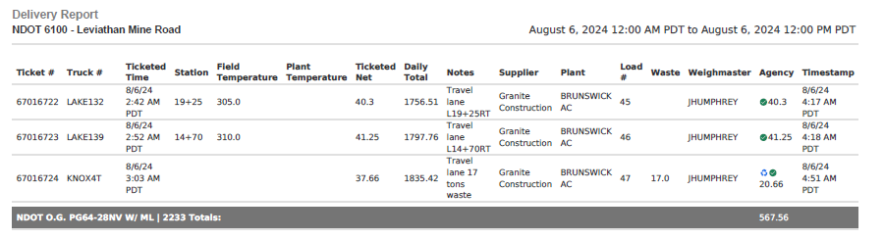
Crews using the HaulHub mobile EDOT application and associated web software for aggregate and plantmix surface items will use the HaulHub Delivery Report to track truck deliveries and daily totals. This report is used as part of the source documents for payment.
Inspectors "Accept" or "Reject" truck loads using the HaulHub mobile application. The daily load information from the mobile application is transferred to the HaulHub web application, where it is compiled into a daily Delivery Report.
- Open HaulHub and click on the Sign In button.
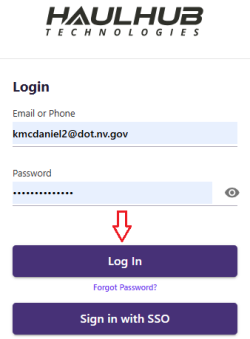
- Click on the Log In button.
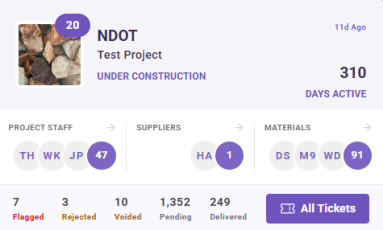
- Click on the appropriate contract panel.
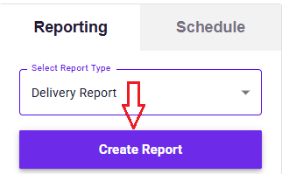
- In the Reporting panel, ensure Delivery Report is selected, and then click the Generate Report button.
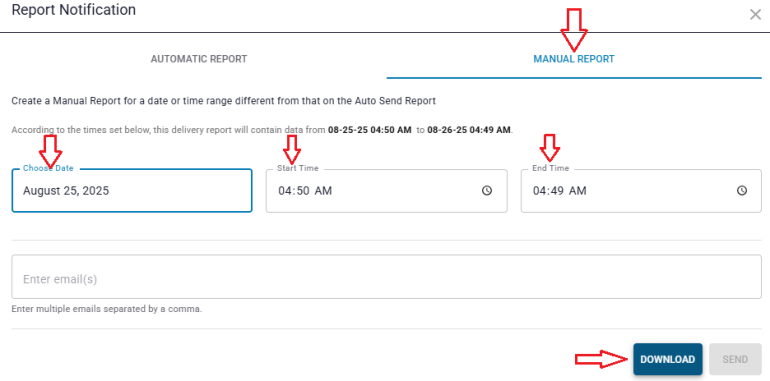
- Click on MANUAL REPORT.
- Select the appropriate date, start time, and end time.
- Click on the Download button.
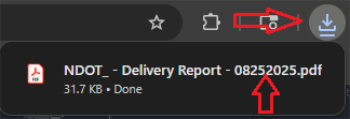
- Click on the browser's download icon and select the report to open it.
- Save the Delivery Report to the appropriate Contract Files\Contract\08 Scale Weights & Certs\8.# directory using the following naming convention; contract ID, Delivery Report, date of report - YYYY-MM-DD (e.g., 6100 Delivery Report 2025-08-25.pdf).

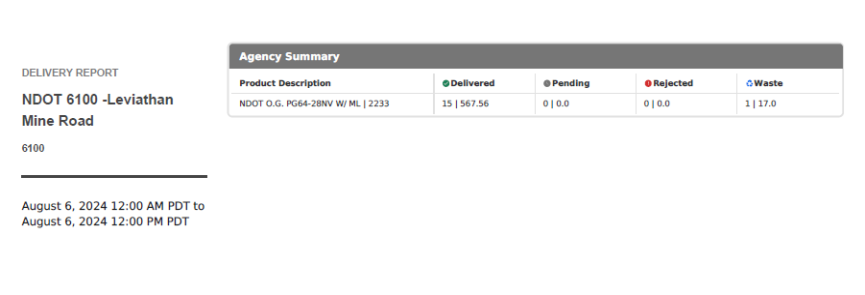
HaulHub Delivery Report Example
Page 1
Page 2
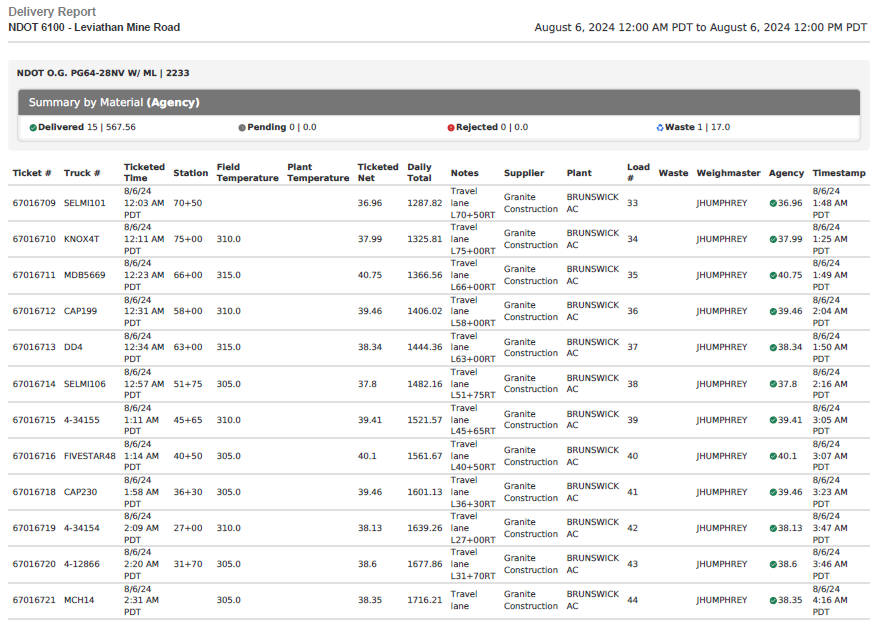
Page 3