Subcontractors
The Subcontract Component lists the Prime Contractor and all subcontractors (including Service Providers) associated with a contract. Subcontractors are added to track equipment and personnel in AWP Daily Work Report (DWRs) and the Mobile Inspector app.
The Prime Contractor has been entered by HQ Construction Administrators. Subcontractors are added when the crew office receives an approved Subcontractor/Service Provider Request (SSPR). If the subcontractor is not in AWP, please email the SSPR to Contract Services with the request.
The AWP software automatically populates a generic list of equipment and personnel to all subcontractors as they are added and saved.
Adding a Subcontractor
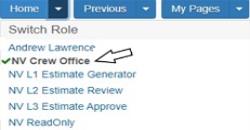
- Confirm current role is set to NV Crew Office.
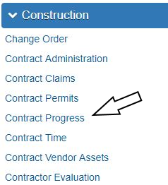
- From the Home page, click Contract Progress under the Construction component.
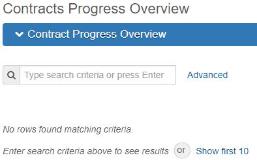
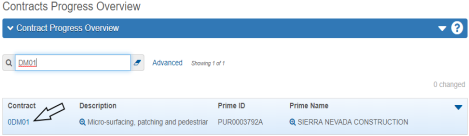
- In the search box, enter the Contract Number, or click Show first 10.
- Click the Contract number hyperlink.
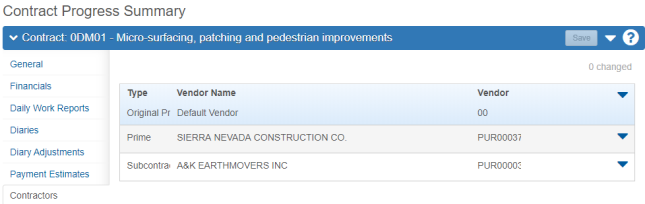
- In the Contract Progress Summary screen, click the Contractors tab to see a list of all contractors on this contract.
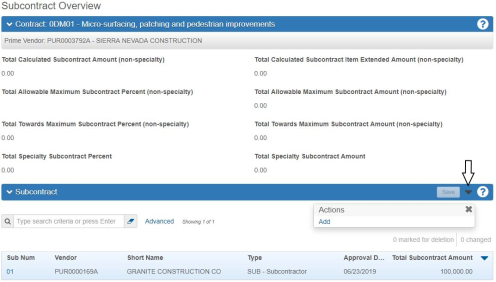
- To add a Subcontractor, using the Quick Links, click Subcontracts.
- In the Row Action drop-down on the Subcontractor component, click Add.
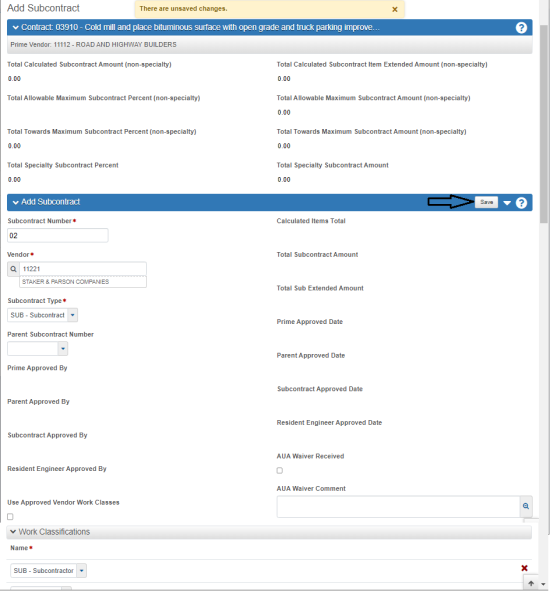
- On the Add Subcontract screen, enter values in the following fields:
- Subcontract Number (Sequential numbering for all subcontractors; 01, 02, etc.)
- Vendor (Place the cursor in the field, start typing in the sub's name and select appropriate subcontractor)
- Subcontract Type (pick from drop-down list)
- SUB - Subcontractor
- SP - Service Provider
- TRK - Trucking / Hauling
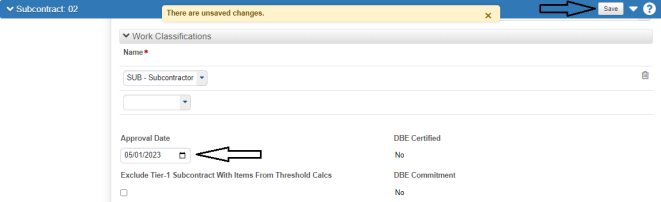
- Work Classifications - Name (select a work classification from the drop down)
- SUB - Subcontractor
- SP - Service Provider
- TRK - Trucking / Hauling
- Click the Save button.
- Scroll down to Work Classifications, enter the Approval Date (from the Approved SSPR), and click the Save button.
- Repeat steps 7 - 10 above for additional Subcontractors, increasing the Subcontract Number by 1. If needed, return back to Subcontract Overview to see what the next Subcontractor Number will need to be.
Note: Each contract will have a 00 Default Vendor as the Original Prime, please ignore this record.

Note: If the Subcontractor is not in the Vendor list, email a copy of the approved SSPR form to Contract Services to have the Vendor added to AWP.