Stockpiles
A construction stockpile is money advanced to the contractor in a payment estimate to purchase and store a material for an item. These advanced payments are recovered as the work on the item is paid for.
The AWP software uses a dollar amount to calculate stockpiles. It also allows for a stockpile on an item to be replenished using the same stockpile record.
Stockpiles are automatically balanced and closed on the Semi-Final payment estimate. However, Stockpiles can also be balanced manually if needed before the Semi-Final payment estimate.
Refer to the topic, in the Documentation Manual, for the required documents and needed to add a stockpile.
Adding a New Stockpile
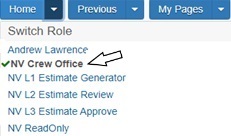
- Confirm current role is set to NV Crew Office.
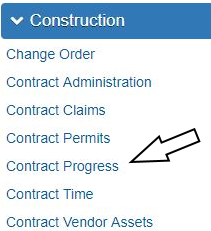
- From the Home page, click Contract Progress under the Construction component.
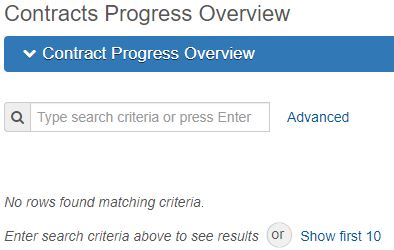
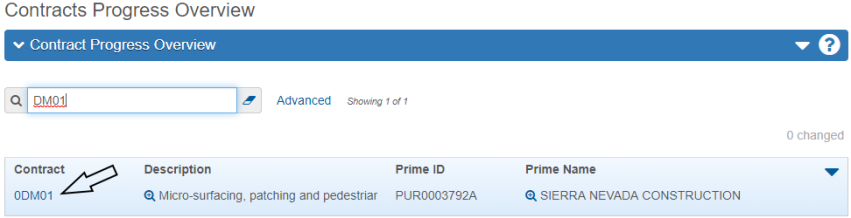
- In the search box, enter your Contract Number, or click Show first 10.
- Click the Contract number hyperlink.
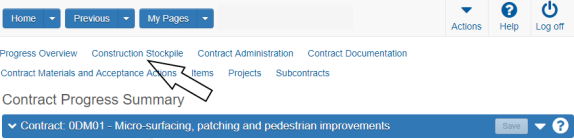
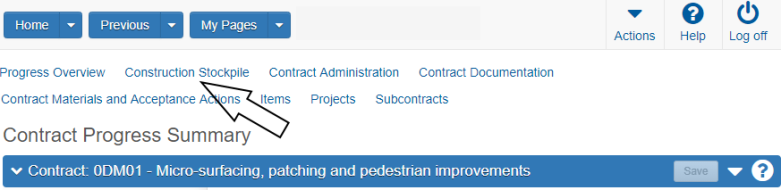
- In the Quick Links, Click Construction Stockpile.
- Click the Row Action drop-down and select Add.
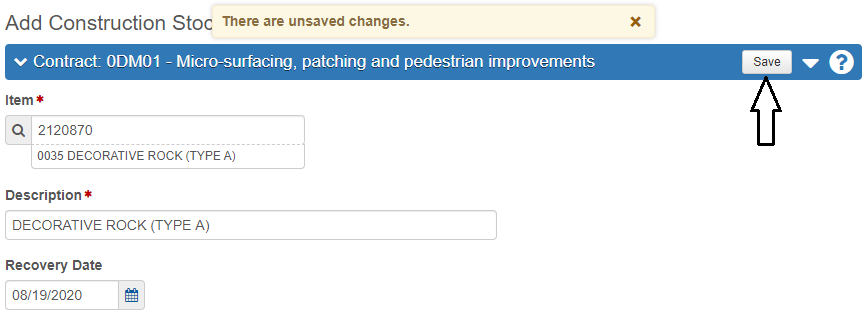
- Select the Stockpile Item, enter the Stockpile Description, confirm the Recovery Date defaults to today's date, and then click the Save button.
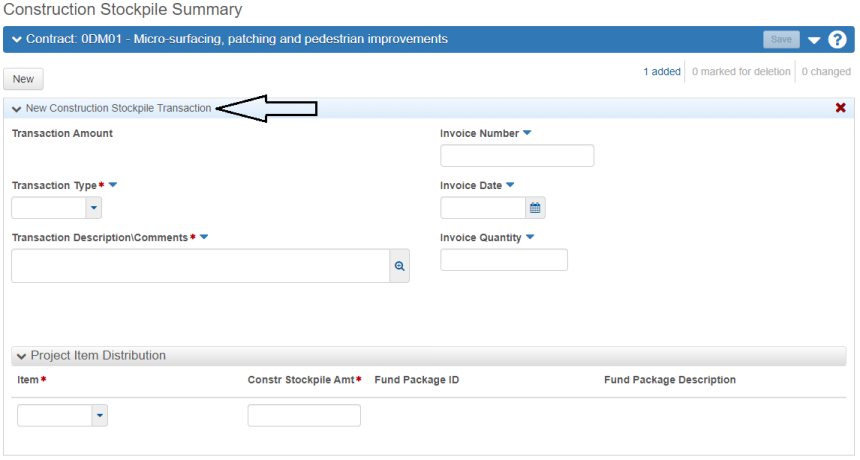
- Scroll down to the New Construction Stockpile Transaction section.
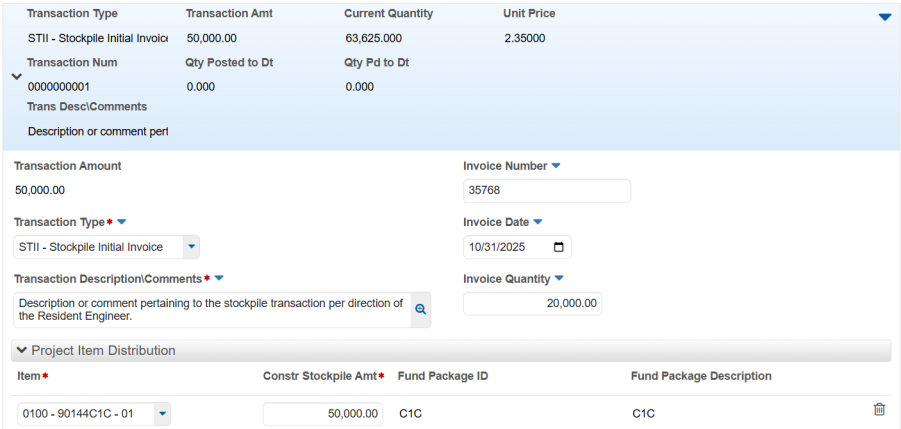
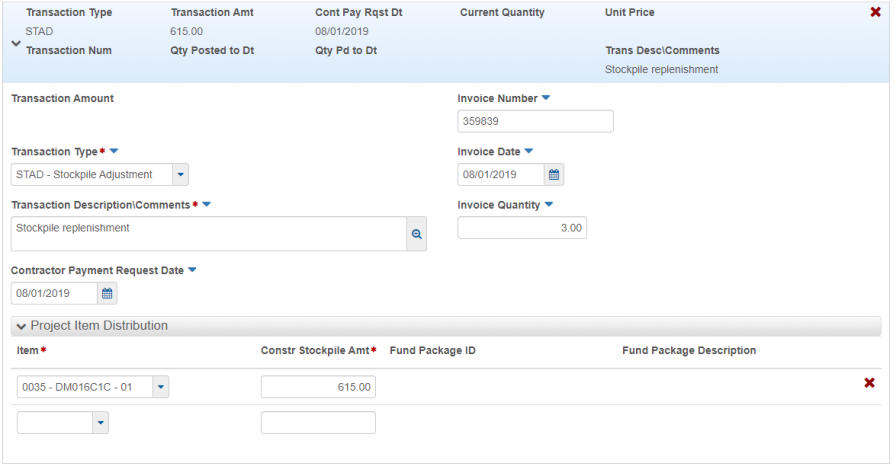
- Complete the following fields under the New Construction Stockpile Transaction section.
- Transaction Amount - A system generated field showing the dollar amount of the construction stockpile transaction. This is equal to the net sum total amount for the transaction's project item distribution amounts.
- Transaction Type:
- STAD - Stockpile Adjustment - Replenishing a stockpile. DO NOT create a new Stockpile record for an item which has a current open Stockpile.
- STCL - Stockpile Closure - Closing a stockpile
- STII - Stockpile Initial Invoice - Stockpile associated with an invoice (i.e. pipe, fence post, etc)
- STIP - Stockpile Initial Produced - Stockpile associated with produced items (i.e. aggregates, premix patching, etc)
- Transaction Description\Comments - Description or Comment pertaining to stockpile transaction (i.e. Initial delivery of rock; replenishment of stockpile; stockpile balance; etc). Enter a description associated with the construction stockpile.
- Contractor Payment Request Date - Date on the Request For Payment For Material On Hand Form (040-015) from the Contractor.
- Invoice Number - The number indicated on an associated invoice.
- Invoice Date - Date on the invoice.
- Invoice Quantity - Quantity of the item for the stockpile. This quantity is for informational purposes only. It is not included in any of the stockpile calculations.
- Project Item Distribution - Item - Select the item, project and category in which to distribute all or a portion of the stockpile transaction. Add additional rows to distribute the stockpile transaction between different categories.
- Project Item Distribution - Const Stockpile AMT - Enter the dollar amount of the stockpile transaction to associate that item, project and category.
- Click the Save button.
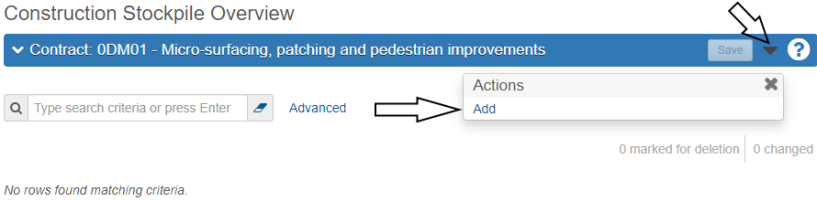
Note: The Stockpile Description should be the Item Description.
Stockpile Replenishment
If an additional stockpile is needed for an item that already has a stockpile, set up using the following steps.
- In the Contract Progress component, click the Construction Stockpile in the Quick Links.
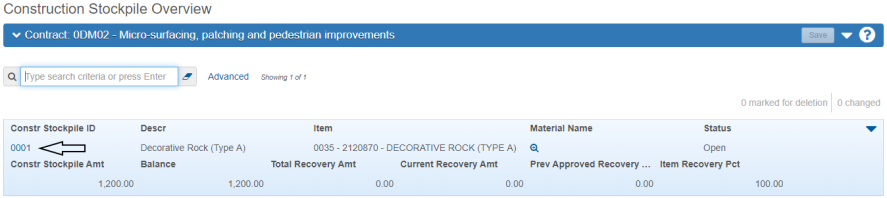
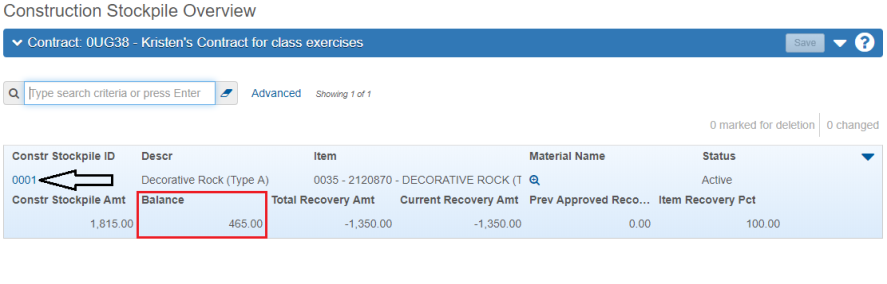
- Click the Stockpile's hyperlink under Constr Stockpile ID.
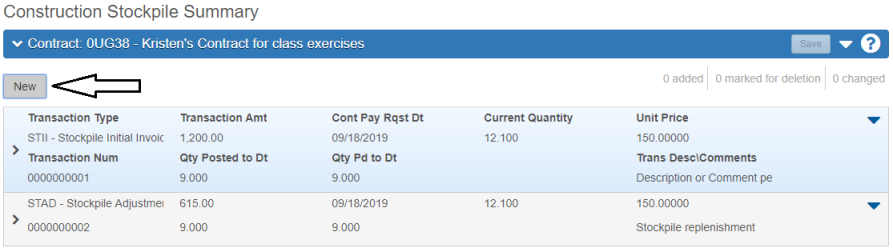
- To add a new transaction, click the New button.
- Enter the new invoice information. Set the Transaction Type to STAD - Stockpile Adjustment. Use the information in Step 8 from the previous section to complete the records.
- Click the Save button.


Manually Balancing/Closing a Stockpile
A stockpile can be manually balanced and closed at any point during the contract.
- In the Contract Progress component, click the Construction Stockpile in the Quick Links.
- Click the Stockpile's hyperlink under Constr Stockpile ID.
- Click the New button.
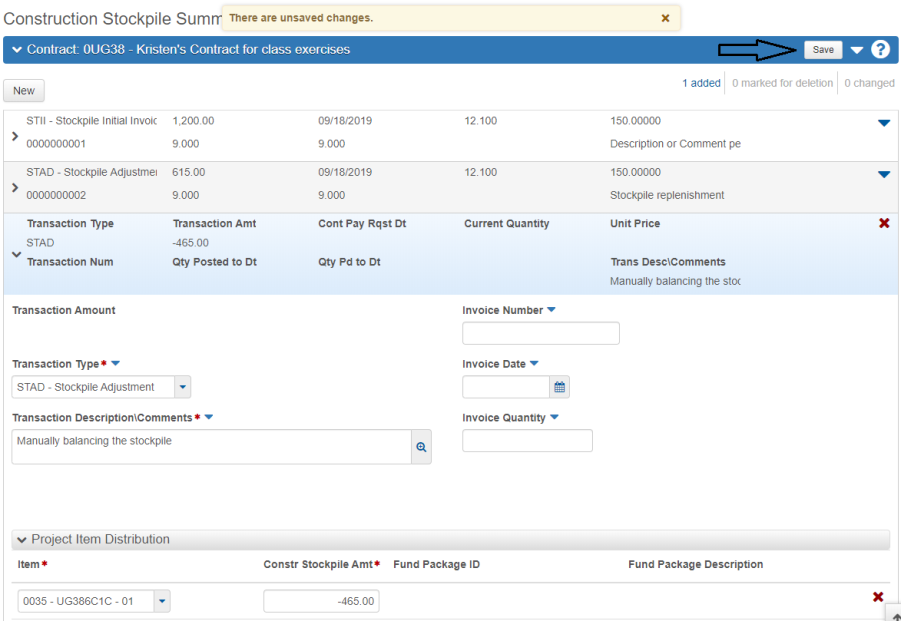
- Enter the balancing information.
- Set the Transaction Type to STAD - Stockpile Adjustment.
- Enter a Transaction Description\Comments.
- Enter a negative dollar amount in the Constr Stockpile Amt field, to bring the balance to zero. (Refer to the balance field)
- Click the Save button.
- Click the New button again.
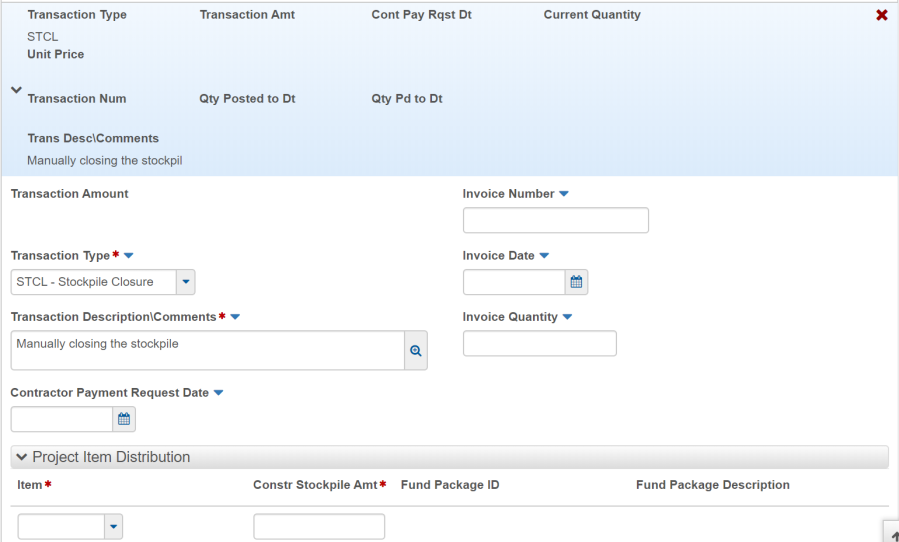
- Enter the closing information.
- Set the Transaction Type to STCL - Stockpile Closure.
- Enter a Transaction Description\Comments.
- Leave all other fields blank.
- Click the Save button.
Generating the Stockpile Summary Report
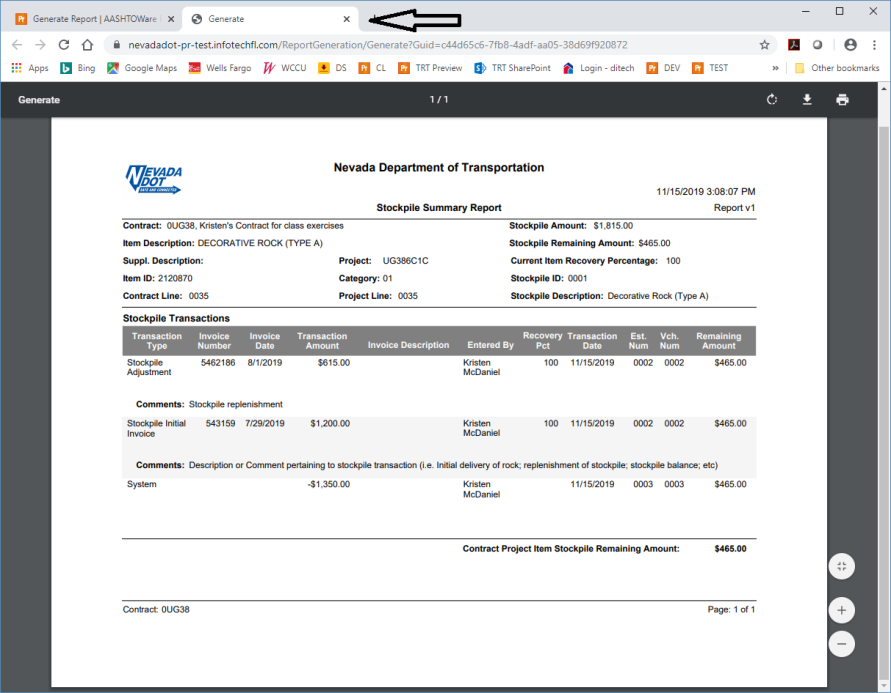
The Stockpile Summary Report shows all transactions for the stockpile and the remaining balance.
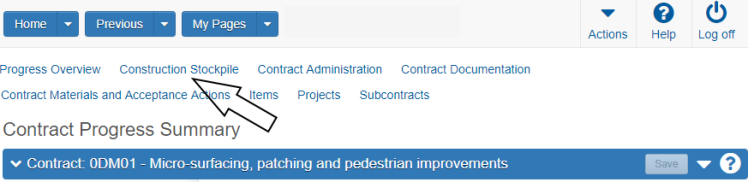
- From the Contract Progress Summary component, click on the Construction Stockpile Quick Link.
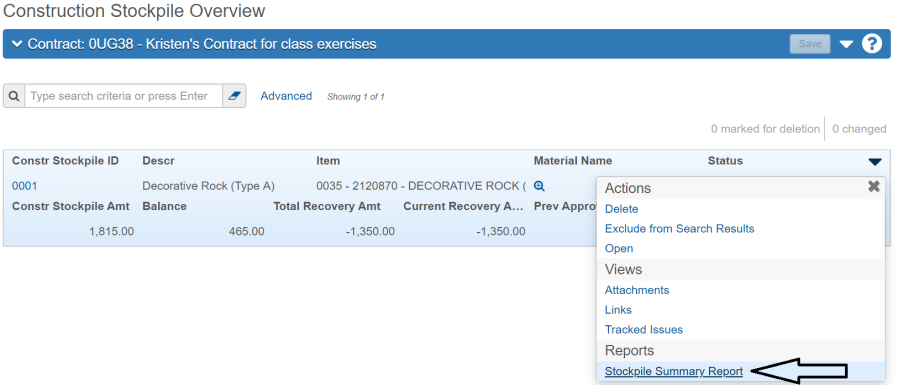
- Click the Construction Stockpile Overview Row Actions drop-down on the stockpile and click the Stockpile Summary Report.
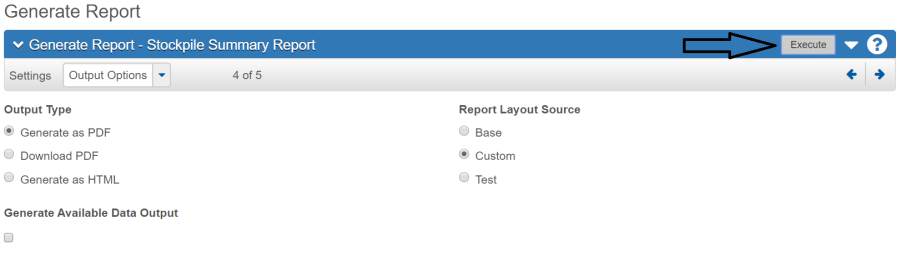
- Accept all Default values in the Generate Report - Stockpile Summary Report window and click the Execute button.
- The Stockpile Summary Report opens in a new browser window.
- At this point the Stockpile Summary Report can be printed to a PDF file, following the browser print options. If a PDF copy is not needed, close the browser tab to delete the report.
- Click the Previous button to return back to the Construction Stockpile Overview Component.