Field Closeout
The field crew is responsible to complete an AWP Field Closeout that consists of processing the Semi-Final payment estimate and creating the Closeout change order as part of contract closeout.
Semi-Final Payment Estimate Procedures
It is important for the field office to complete several checks to ensure certain tasks have been completed in AWP before creating the Semi-Final payment estimate, otherwise you may encounter multiple exceptions along the way.
The items in the following list must be addressed prior to producing a Semi-Final payment estimate:
- Enter the Time Charges Stop Date and Actual Completion dates on the Main Site Time.
- Activate and enter the Start Date on the 00 Clean Site Time.
- Enter the Actual Completion date on the 00 Clean Site Time.
- Enter a Final DWR (if appropriate).
- All DWRs must be Approved.
- There can be no unapproved change orders (excluding those with a status of Denied).
- Review all items for accuracy and mark as Complete.
- All Stockpiles, in all categories, must equal zero. Stockpiles are automatically balanced when the Semi-Final payment estimate is processed.
Entering the Main Site Time - Time Charges Stop Date
Refer to the Contract Setup topic of Reviewing and Setting Up a Contract.
- Open the Contract's Main Site Time and enter the following dates in the Units and Dates Tab. Both dates MUST be entered prior to creating the Semi-Final Payment Estimate.
- Times Charges Stop Date: The last day time was charged.
- Actual Completion: All contract work completed date.
- Click the Save button.

Activating and Starting the 00 Clean Time
When the Time Charges Stop Date and Actual Completion dates have been entered in the contract's Main Site Time, the 00 Clean Site Time must be Activated and the Start Date must be entered.
Refer to the Contract Setup topic for Reviewing and Setting Up a Contract.
- Open the 00 Clean Site Time and enter the following in the General Tab:
- Effective Date: Today's date
- Status: Active
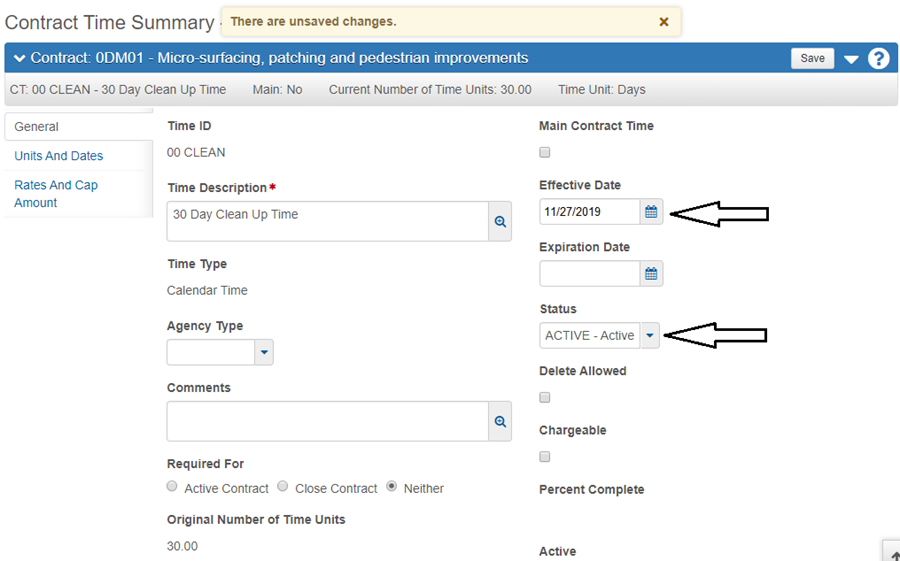
- Enter the following in the Units and Dates Tab:
- Start Date: The date the Cleanup starts. This date must be at least one day after the Time Charges Stop Date entered in the contract's Main Site Time.
- Original Number of Time Units: The number of days allotted for Clean Up (refer to the Time Description on the General Tab.
- Click the Save button.

Note: The Resident Engineer is required to enter a Daily Diary each day of the Clean up period.
Entering the 00 Clean Time - Actual Completion Date
When the contract's clean time has completed the 00 Clean Time's Actual Completion date must be entered.
Refer to the Contract Setup topic of Reviewing and Setting Up a Contract.
- Open the 00 Clean Site Time and enter the following in the Units and Dates Tab:
- Actual Completion - The date the 00 Clean Time completed.
- Click the Save button.

Entering a Final DWR
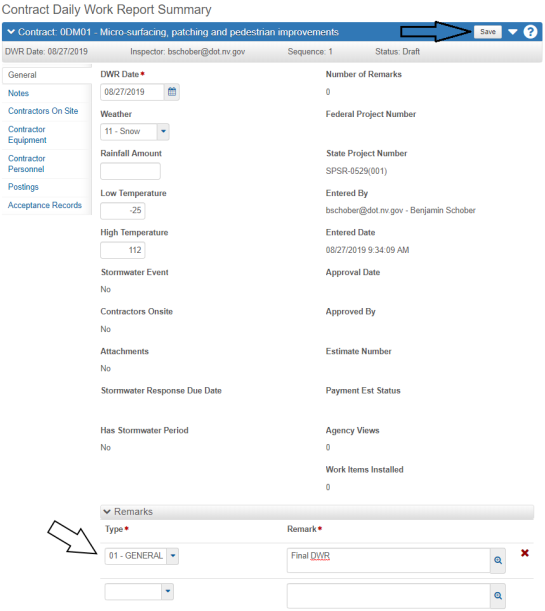
If additional payments are required, create and approve a Final DWR with quantities posted to the applicable bid items. This step may be omitted if no payments are required.
Refer to the Daily Work Reports topic of Adding a New DWR and Approving a DWR.
- Create a DWR and enter "Final DWR" in Remark section.
- Enter applicable DWR Postings.
- Click the Save button.
- Approve the DWR.
Checking the Status of DWRs
Refer to the Daily Work Reports topic of Approving a DWR.
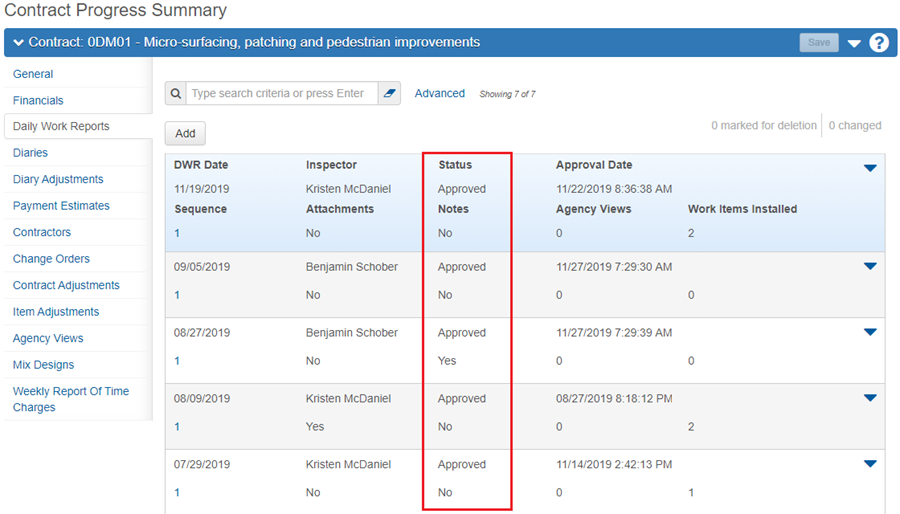
- From the Contract Progress Summary Component, go to the Daily Work Reports Tab and confirm all DWRs have an Approved Status.
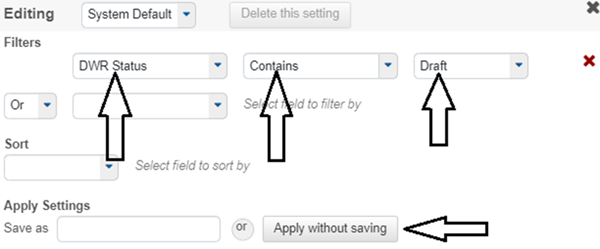
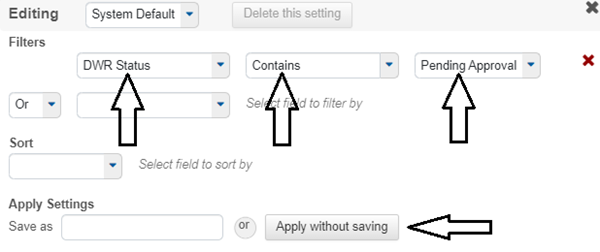
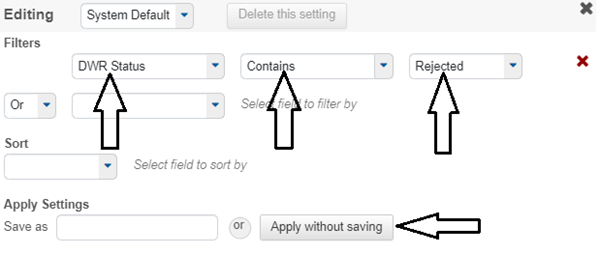
- Use an Advanced Filter to search for DWRs with a DWR Status of Draft, Pending Approval, and Rejected. Refer to the AWP General Navigation topic of Sorting and Filtering Lists, in this user guide for details in using an Advance Filter.
- Approve or delete the DWRs as appropriate.
Reviewing Change Order Status
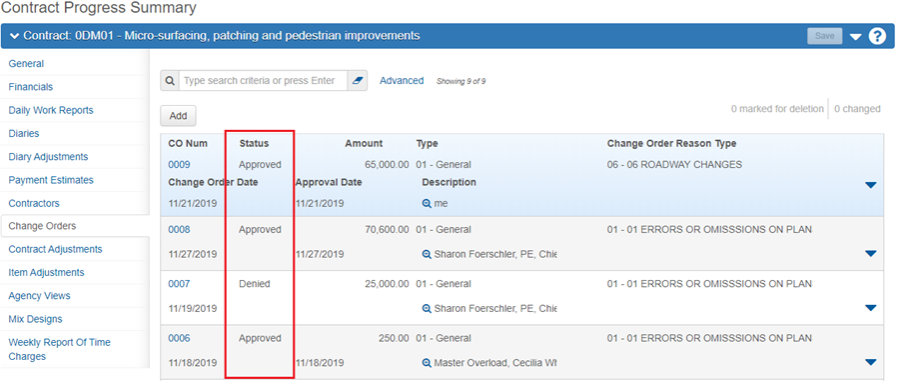
There can be no Change Orders with a status of Draft. Only a status of Approved or Denied are allowed.
Refer to the Change Orders topic, Approving a Change Order and Deleting and Denying a Change Order, in this user guide.
- From the Contract Progress Summary Component, go to the change orders Tab and confirm all change orders have an Approved or Denied Status.
- Approve or Deny as appropriate.
Reviewing and Marking Items as Complete
Review all items for accuracy. When the review is complete ensure that all items are marked as Complete.
Refer to the Contract Items topic of Contract Items Overview and Marking Items as Complete.
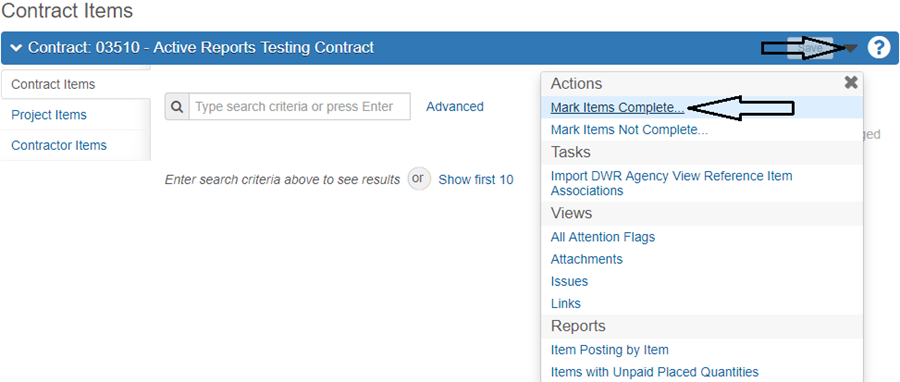
- From the Contract Items Component, go to the Contract Items Tab.
- Click the Component Row Actions drop-down and select Mark Items Complete.
- In the Select Items window, individual items can be selected by clicking on them or ALL items can be selected using the All link. Once the item(s) are selected click the Mark Items Complete button.

Adding a Semi-Final Payment Estimate
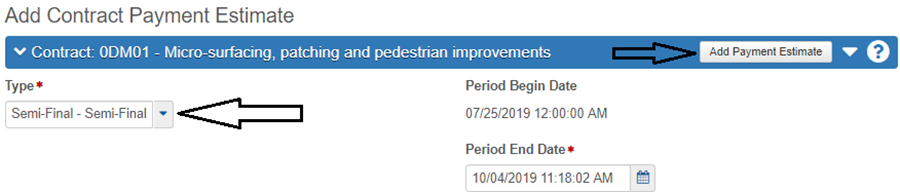
When all the Semi-Final Estimate Procedures have been completed, the field office will process a Semi-Final payment estimate. More than one Semi-Final payment estimate can be created and processed.
- Refer to the Payment Estimates topic of Adding a Payment Estimate, Step 6, select Semi-Final as the Type for the estimate.
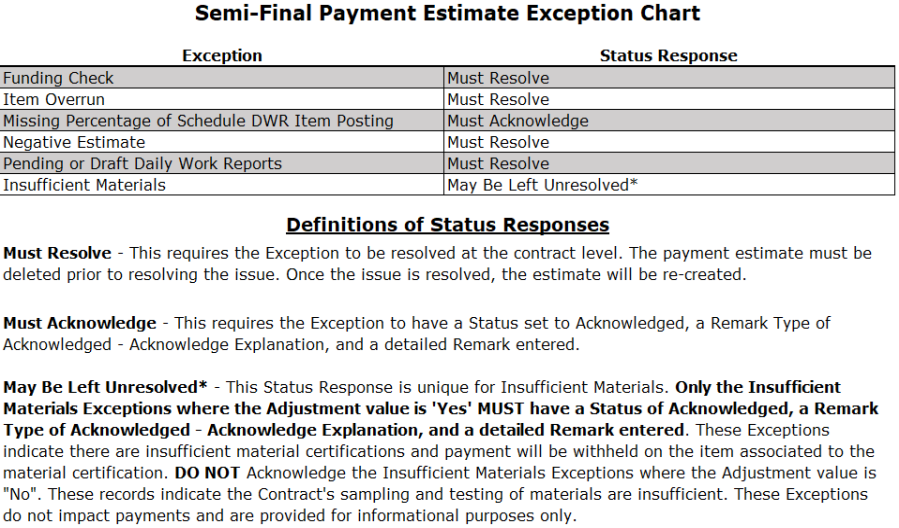
- When reviewing the Semi-Final's Exceptions, pay close attention to the Payment Estimate Exception Chart as there are more Must Resolve exceptions for this type of estimate.
- Complete the Semi-Final estimate according to the Payment Estimates topic of Adding a Payment Estimate.
Note: When the contract is completed satisfactorily, and the District has accepted the Contract (District Acceptance), the Construction Admin Staff will reduce retainage to $50,000.
Adding the Contract Closeout Change Order
The Closeout Change Order reconciles the quantities of all items. A detailed justification is requried for all items with changes resulting in an increase or decrease of $50,000. This type of modification will be the last modification prepared by the Resident Engineer after creating the Semi-Final payment estimate.
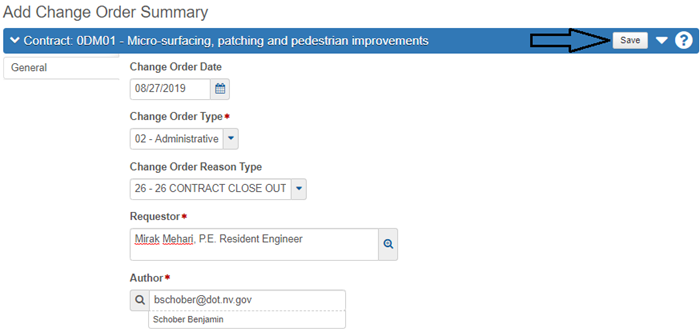
- Refer to the Change Orders topic of Steps to Create a Change Order, Step 8, and select Administrative for Change Order Type and 26 Contract Close Out for Change Order Reason Type.
- Click the Save button.
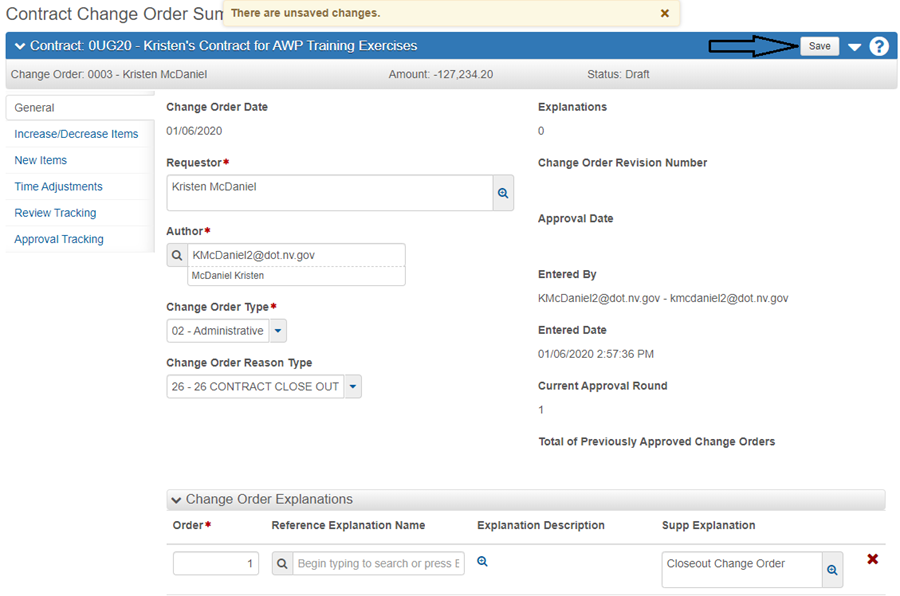
- Go to the change order Explanations area and enter the following:
- Order: 1
- Supp Explanation: Closeout Change Order
- Click the Save button.
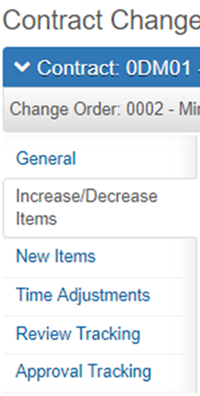
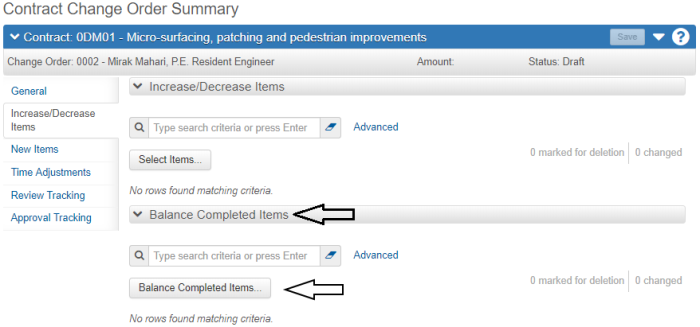
- To Balance Completed Items, click the Increase/Decrease Items tab.
- Click the Balance Completed Items button.
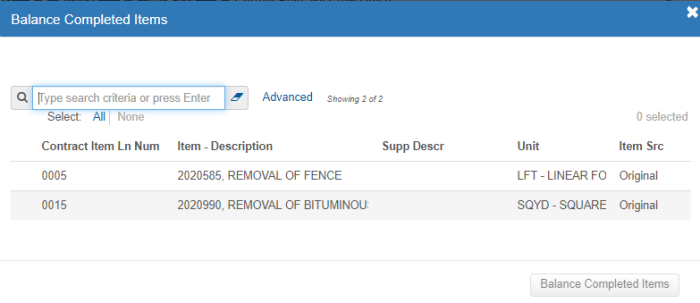
- In the search box, press the Enter key to display all completed items to be balanced.
- Select all displayed items and click the Balance Completed Items button. All items can be selected at one time by clicking the All hyperlink.
- Use the Balance -50k and Balance 50k filters to find the items that are +/-$50,000. For each of these items, overwrite the generic Explanation and enter a detailed Explanation. Click the Save button after entering each explanation.
- Leave this change order in a Draft status and contact Construction Admin Staff that the Closeout Change Order is ready for review.

Note: The AWP software automatically populates a generic Explanation, "Completed Item Balanced", for all the balanced items. Leave this generic Explanation in place for all the items that do not meet the +/-$50,000 criteria.
