Contract Items
AWP contracts contain two types of Item Sources: Original and Change Order.
Original items are those that were included in contract documents at time of award.
Change Order items are items not contained in the original contract which have been approved by a Change Order.
AWP limits overruns by establishing limits based on Major items. A Major item, as defined in section 101.03 in the Standard Specifications for Road and Bridge Construction, is an item which has a total cost equal to or greater than $50,000.00. The AWP software is set up with the overrun rule that any Major Item, at the Project/Category level, cannot exceed the original quantity by 100% or exceed $100,000.00. If these thresholds or overruns are exceeded, a change order will need to be executed to make future payments against the item.
At any point during the contract, the items can be reviewed for any reason.
Reviewing Contract and Project Category Items
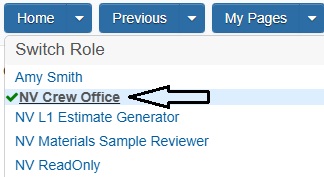
- Confirm current role is set to NV Crew Office.
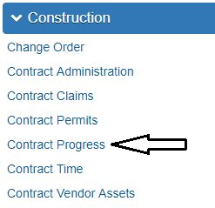
- From the Home page, click Contract Progress under the Construction component.
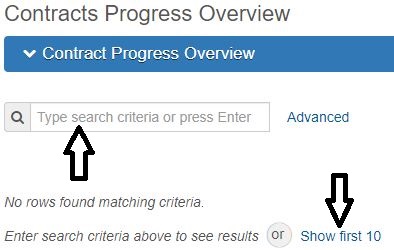
- In the search box, enter the Contract Number, or click Show first 10.
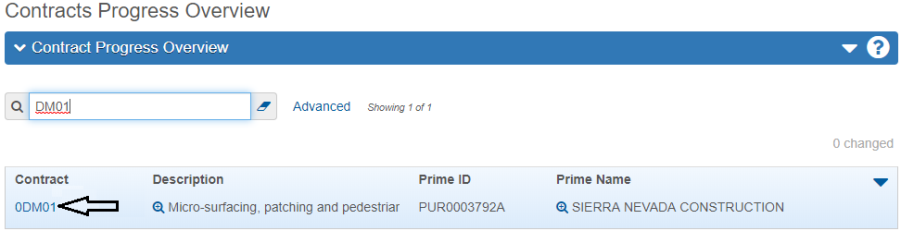
- Click the Contract number hyperlink.
- In the Quick Links at the top of the screen, click Items.
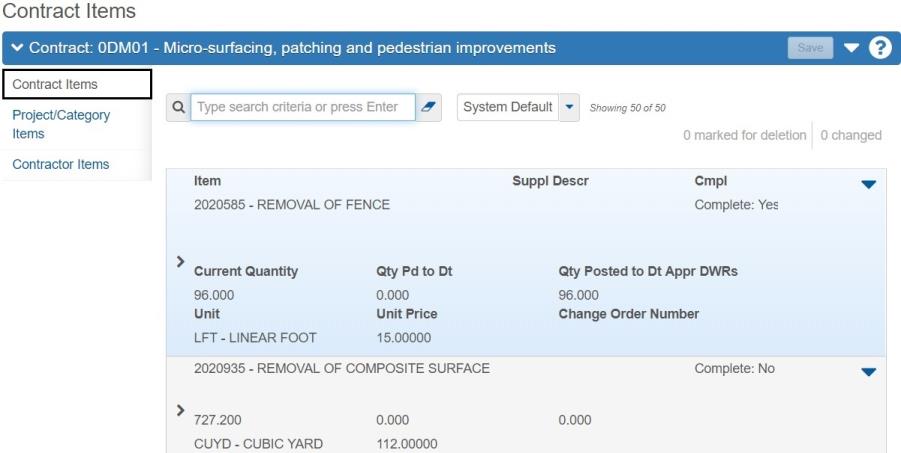
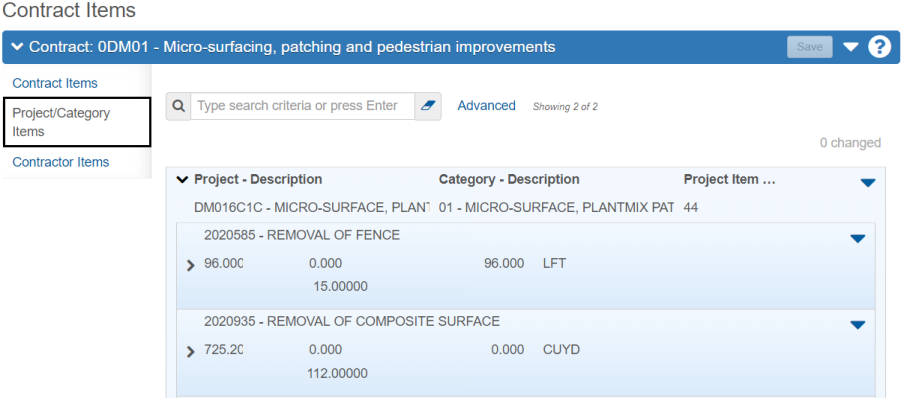
- Use the navigational tabs to review items at the Contract Items or Project/Category Items level.
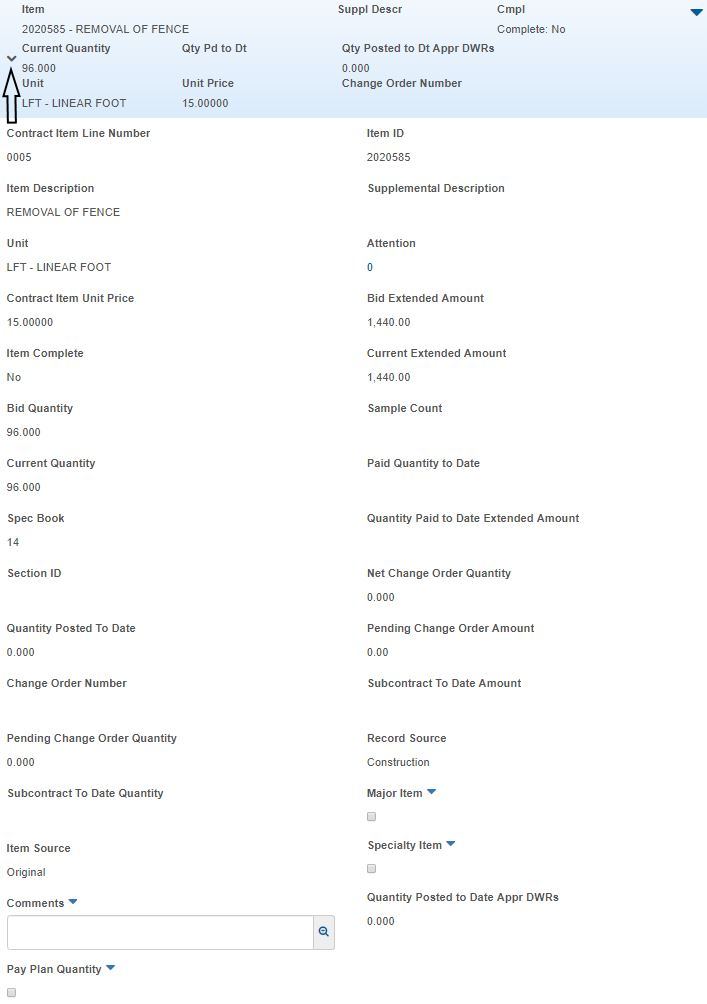
- Click the chevron to expand the item to review the item's details.

Marking Items as Complete
As items are completed they must be manually marked as completed. This step is applicable to the Field Closeout process (see topic in this user guide). All items must marked as completed before the Semi-Final estimate can be created.
- Confirm current role is set to NV Crew Office.
- From the Home page, click Contract Progress under the Construction component.
- Enter the Contract Number in the Quick Find Search box, or click Show first 10.
- Click the Contract number hyperlink.
- Click Items in the Quick Links at the top of the screen.
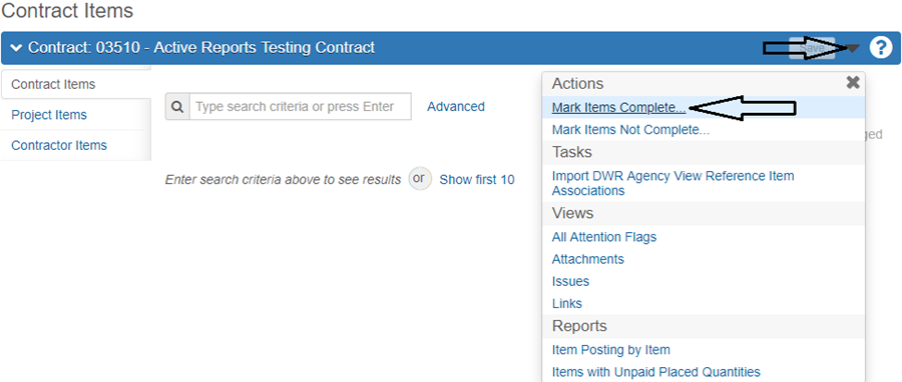
- Click the Component Row Actions drop-down and select Mark Items Complete.
- In the Select Items window, individual items can be selected by clicking on them or ALL items can be selected using the All link. Once the item(s) are selected click the Mark Items Complete button.
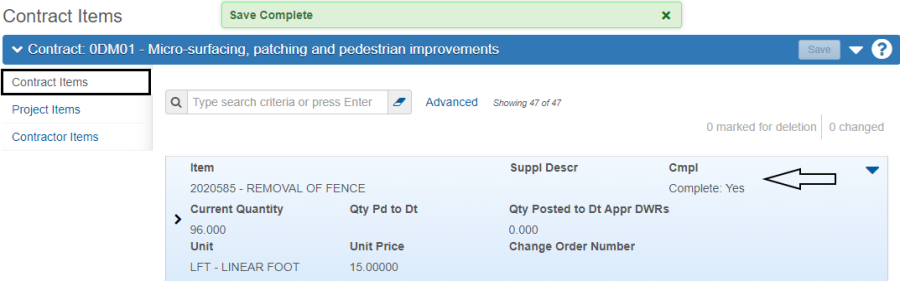
- After you select Mark Items Complete, AWP will automatically save and will display the item as complete in the blue header.
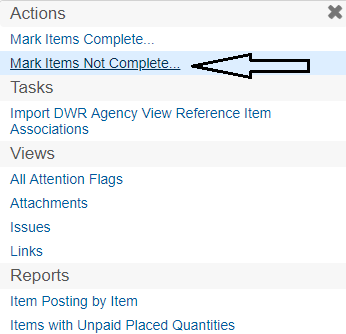
- If a completed item is not actually complete, follow the same steps, but select Mark Item Not Complete.
- Select the item(s) and click on the Mark Items Not Complete button.